ZTA/SSL Access
Navigation: VPN Tunnels → ZTA/SSL Access
Configure Zero Trust Access (ZTA) and SSL VPN for remote users. Remote clients connect via OpenVPN/SSL and are assigned policies based on user identity and device.
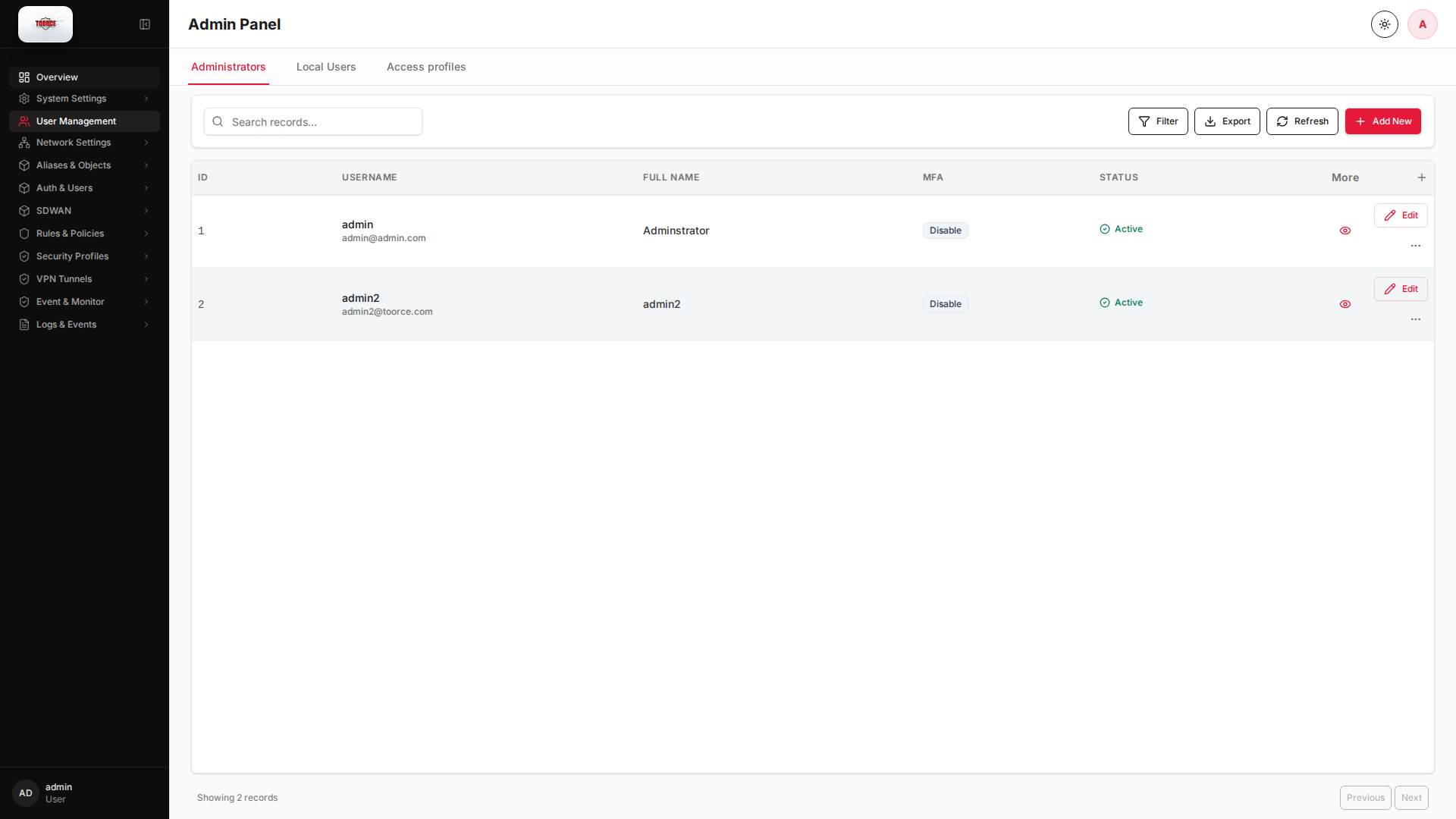
Add / Edit forms
Click + Add New to open the creation dialog, or Edit on an existing row to modify a record.
List view
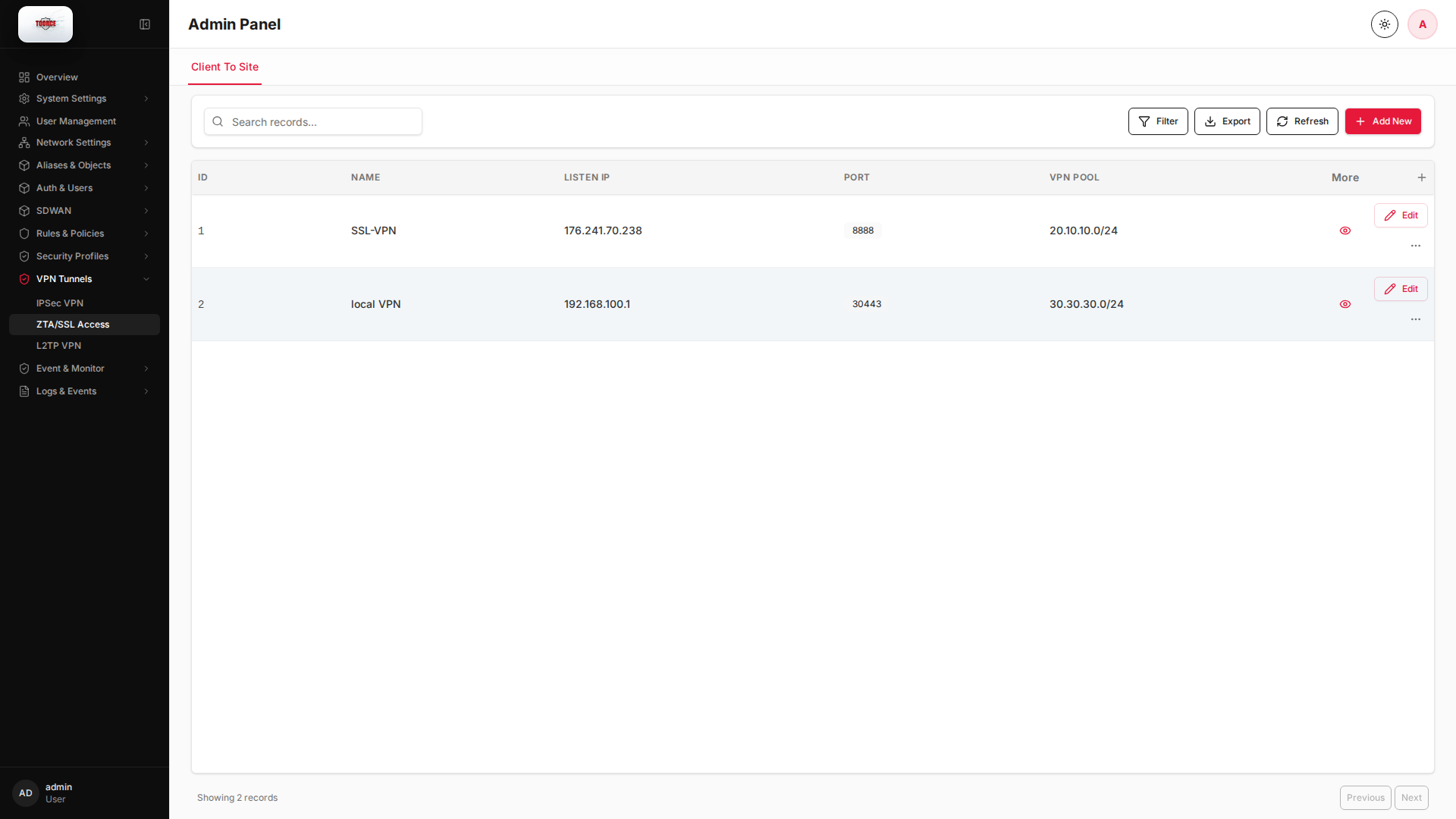
Add form
Empty form after clicking + Add New:
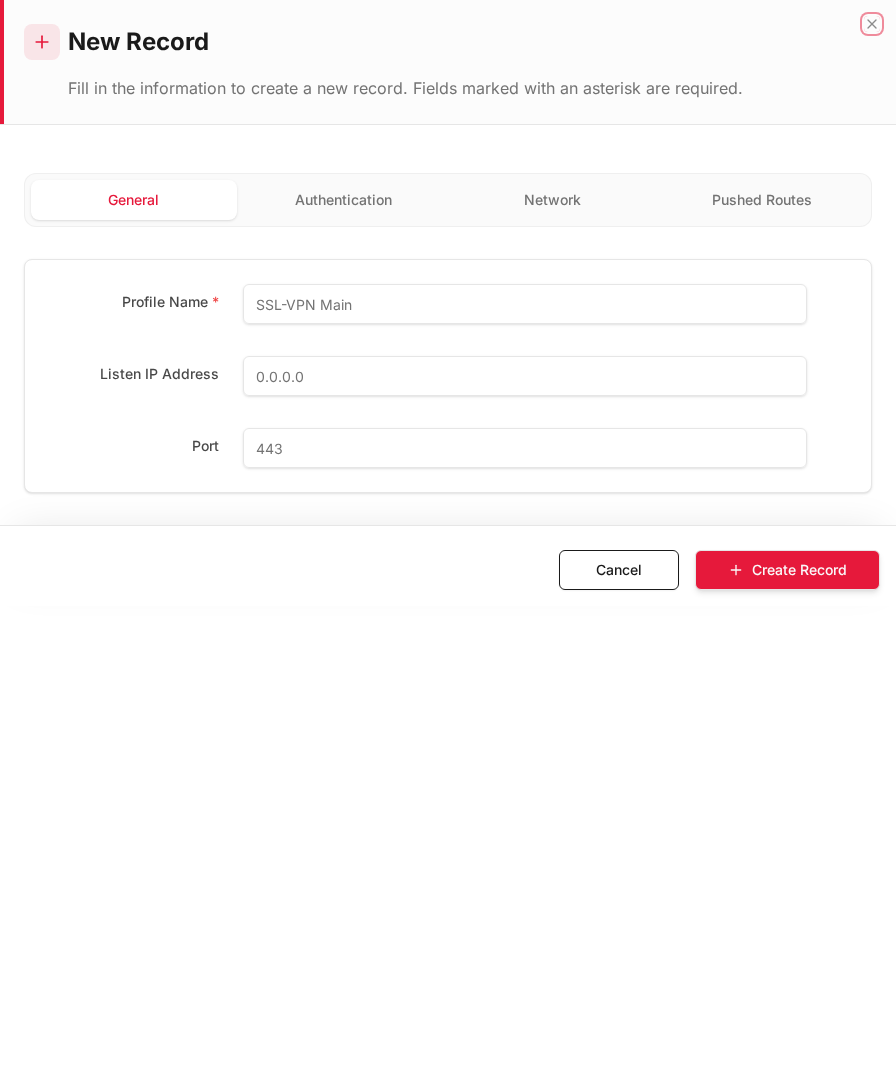
Same form filled with example data (do not save in production):
Edit form
Existing record opened with Edit:
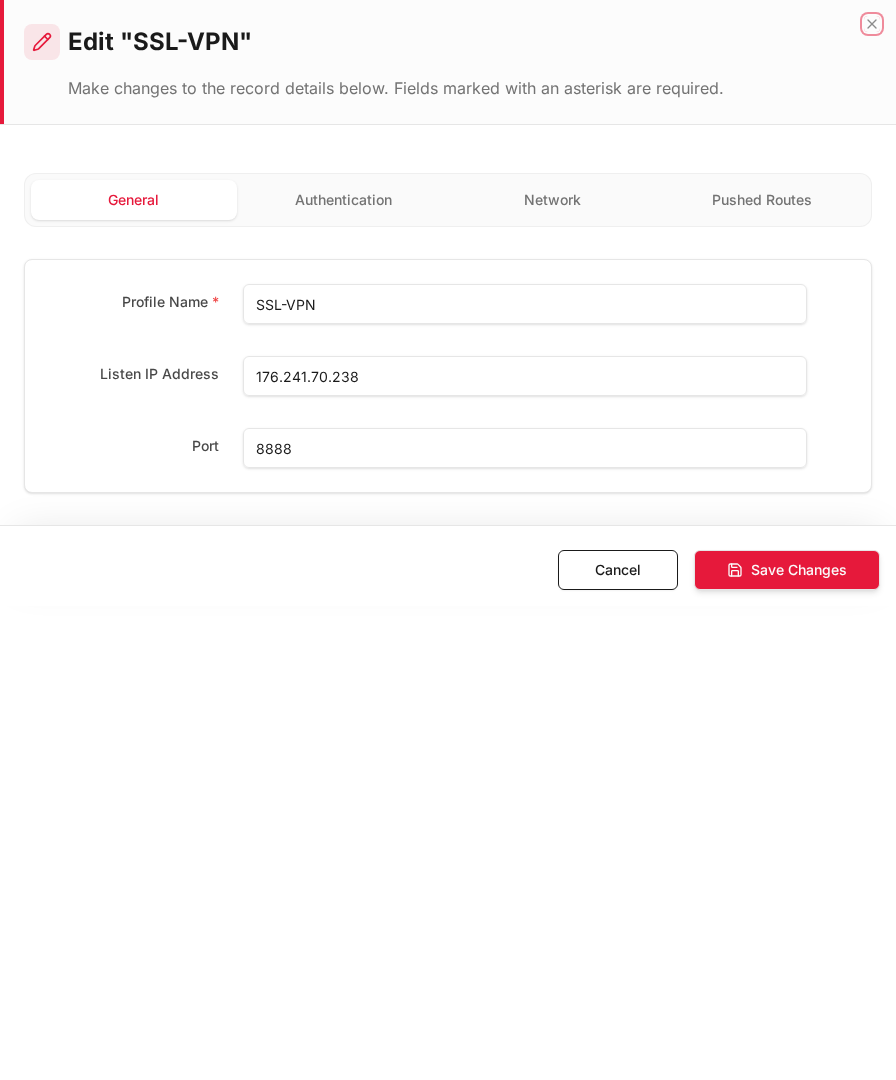
Form fields explained
Dialog title: New Record — SSL/ZTA VPN
| Field | Required | Description | Example value |
|---|---|---|---|
| Name | Yes | SSL VPN server profile name | Remote_Staff |
| Client Pool Start/End IP | Yes | IP range assigned to VPN clients | 10.8.0.2 – 10.8.0.254 |
| Allowed Users | Yes | Local users or groups permitted to connect | vpn_users |
| Enforce ZTA Access | No | Require Zero Trust policy check after auth | Enabled |
Technical background
SSL VPN / Zero Trust Access (ZTA)
SSL VPN (OpenVPN-based) provides remote user access via TLS-encrypted tunnel. Zero Trust adds identity verification and policy checks before granting access — "never trust, always verify."
Components
| Component | Role |
|---|---|
| Client pool | IP range assigned to VPN clients |
| Allowed users | Authentication identity |
| ZTA profile | Post-auth policy (what resources client can reach) |
| Split tunnel | Route only corporate traffic through VPN |
Security relevance
ZTA replaces traditional "connect to network, access everything" VPN with per-session, per-resource authorization.
Prerequisites
- Local Users/Groups or Active Directory configured
- Certificates or auto-generated SSL cert for VPN portal
- Interfaces with WAN access
How to configure SSL/ZTA access
- Go to VPN Tunnels → ZTA/SSL Access.
- Click Add New or Edit existing server.
- Fill in:
| Field | Description | Example |
|---|---|---|
| Name | Server profile name | SSL-VPN |
| Enabled | Activate service | ✓ |
| Client Pool Start IP | VPN IP pool start | 10.8.0.2 |
| Client Pool End IP | VPN IP pool end | 10.8.0.254 |
| DNS Server | DNS pushed to clients | 8.8.8.8 |
| Allowed Users | Local users | Select users/groups |
| ZTA Access Profile | Access policy for connected clients | Select profile |
| Enforce ZTA Access | Require ZTA policy check | ✓ |
| Allow file transfer | Permit file transfer over VPN | As needed |
- Click Save.
Example: Remote employee access
| Field | Value |
|---|---|
| Name | Remote_Staff |
| Client Pool | 10.8.0.2 – 10.8.0.100 |
| Allowed Users | vpn_users group |
| DNS | 192.168.100.1 |
| Enforce ZTA Access | Enabled |
Where SSL/ZTA is referenced
| Location | Usage |
|---|---|
| Inline Rules | SSL_VPN_Allow Internet policy for VPN users |
| SSL/ZTA Logs | Connection and auth events |
| ZTA Connected Clients | Live connected sessions |
| Dashboard → Interfaces | tun_srv_1 (SSL-VPN) interface |
Monitoring connected clients
View active sessions at Logs & Events → ZTA Connected Clients. Shows username, assigned IP, connection time, and bytes transferred.