Time & GeoIP LAN Access
Navigation: Scenarios → Time & GeoIP LAN Access
Allow LAN → WAN internet traffic only during working hours (Sunday–Thursday, 08:00–17:00) and only to approved destination countries, by creating a Time profile, a GeoIP profile, and assigning both on an inline rule.
Important — GeoIP placement: For outbound internet access, attach GeoIP as Destination GeoIP profile on the Security Profiles tab. For DNAT rules and published services (inbound), filter by client country using Source GeoIP profile on the Source tab — not Destination GeoIP profile.
Network design
LAN clients reach the internet through the TOORCE firewall. The allow rule carries a Time profile (when the rule is active) and a Destination GeoIP profile (which countries LAN users may reach). Inbound published services use the opposite GeoIP attachment point.
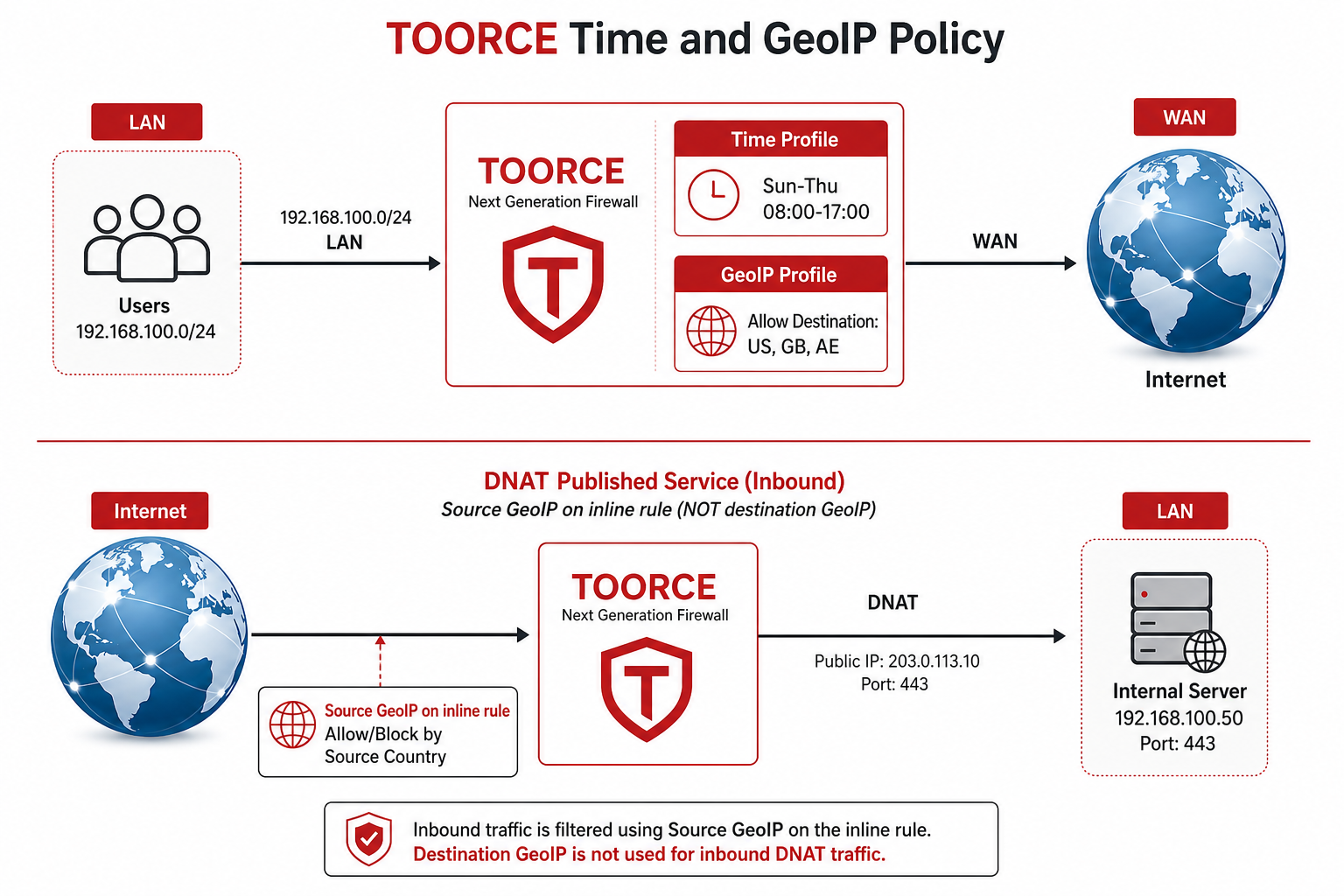
Figure 1 — Outbound LAN→WAN uses Destination GeoIP; inbound DNAT uses Source GeoIP
Reference topology
| Component | Interface | Example |
|---|---|---|
| LAN | enp6s0 |
192.168.100.0/24 |
| WAN | enp9s0 |
Public IP / DHCP from ISP |
| Published web server | DNAT on WAN | 203.0.113.10:443 → 192.168.100.20:443 |
Policy flow (outbound)
1. Create Time profile → Sun–Thu 08:00–17:00 active
2. Create GeoIP profile → Allow US, GB, AE (whitelist); block all others
3. Inline rule: LAN → WAN, Action Allow
   → Security Profiles: Time profile + Destination GeoIP profile
4. Outside schedule or to blocked country → rule does not allow (next rule / implicit deny)
5. Install Policy
GeoIP profile placement — quick reference
| Rule type | Traffic direction | GeoIP field to use | Tab | Do not use |
|---|---|---|---|---|
| LAN → WAN internet | Outbound | Destination GeoIP profile | Security Profiles | Source GeoIP for country allow-list |
| DNAT / published service | Inbound (Internet → LAN) | Source GeoIP profile | Source | Destination GeoIP profile |
| Block inbound abuse | Inbound | Source GeoIP profile | Source | Destination GeoIP on WAN-facing DNAT |
Why: Outbound policy cares about where traffic is going (destination country). Inbound DNAT cares about who is connecting (source country on the internet side).
Prerequisites
- LAN and WAN interfaces configured (NAT Gateway)
- SNAT or outgoing NAT so LAN clients reach the internet
- Address objects for
LAN_Network
Step 1 — Create the Time profile (Sun–Thu 08:00–17:00)
- Go to Security Profiles → Time Profiles.
- Click + Add New.
- Configure:
| Field | Value |
|---|---|
| Profile / schedule name * | Work_Hours_Sun_Thu |
| Default Action * | Deny (outside defined ranges the schedule does not permit access) |
Weekly schedule
Enable Sunday, Monday, Tuesday, Wednesday, Thursday only. Set each active day to 08:00 AM – 05:00 PM with action Allow. Leave Friday and Saturday disabled (no ranges).
| Day | Active | Start | End | Action |
|---|---|---|---|---|
| Sunday | Yes | 08:00 | 17:00 | Allow |
| Monday | Yes | 08:00 | 17:00 | Allow |
| Tuesday | Yes | 08:00 | 17:00 | Allow |
| Wednesday | Yes | 08:00 | 17:00 | Allow |
| Thursday | Yes | 08:00 | 17:00 | Allow |
| Friday | No | — | — | — |
| Saturday | No | — | — | — |
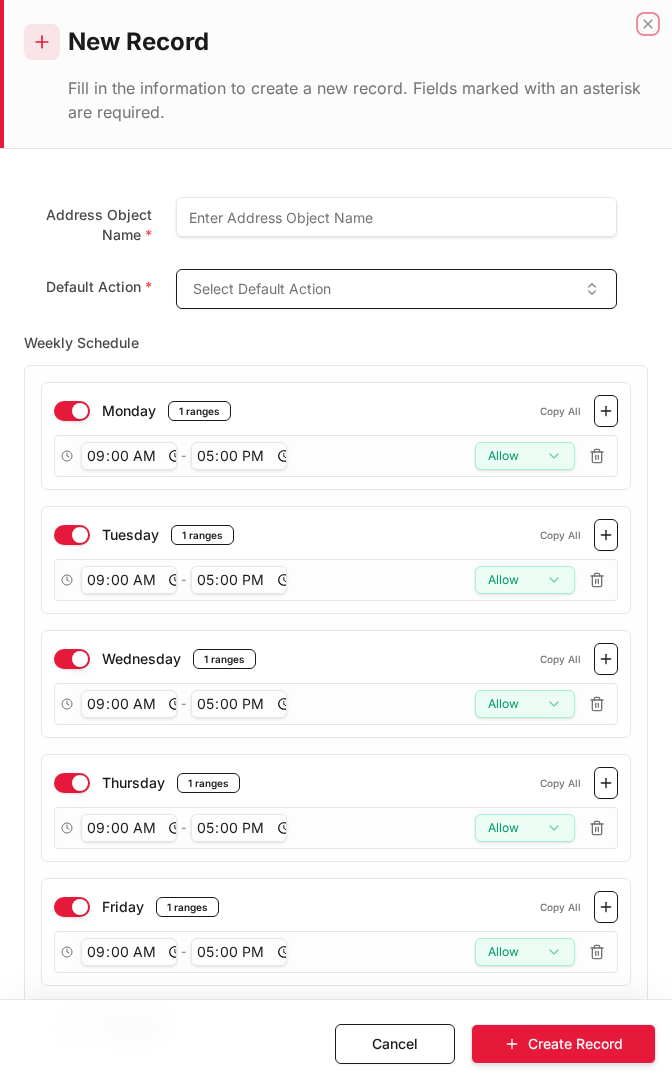
- Click + Create Record.
See Time Profiles.
UI note: The creation dialog may label the name field Address Object Name — enter your schedule name there (for example
Work_Hours_Sun_Thu).
Step 2 — Create the GeoIP profile (allowed destination countries)
- Go to Security Profiles → Geoip Security.
- Click + Add New.
General tab
| Field | Value |
|---|---|
| Profile Name * | Allow_Dest_US_GB_AE |
| Profile Type | GeoIP country list |
| IP List Mode | whitelist (only selected countries are permitted) |
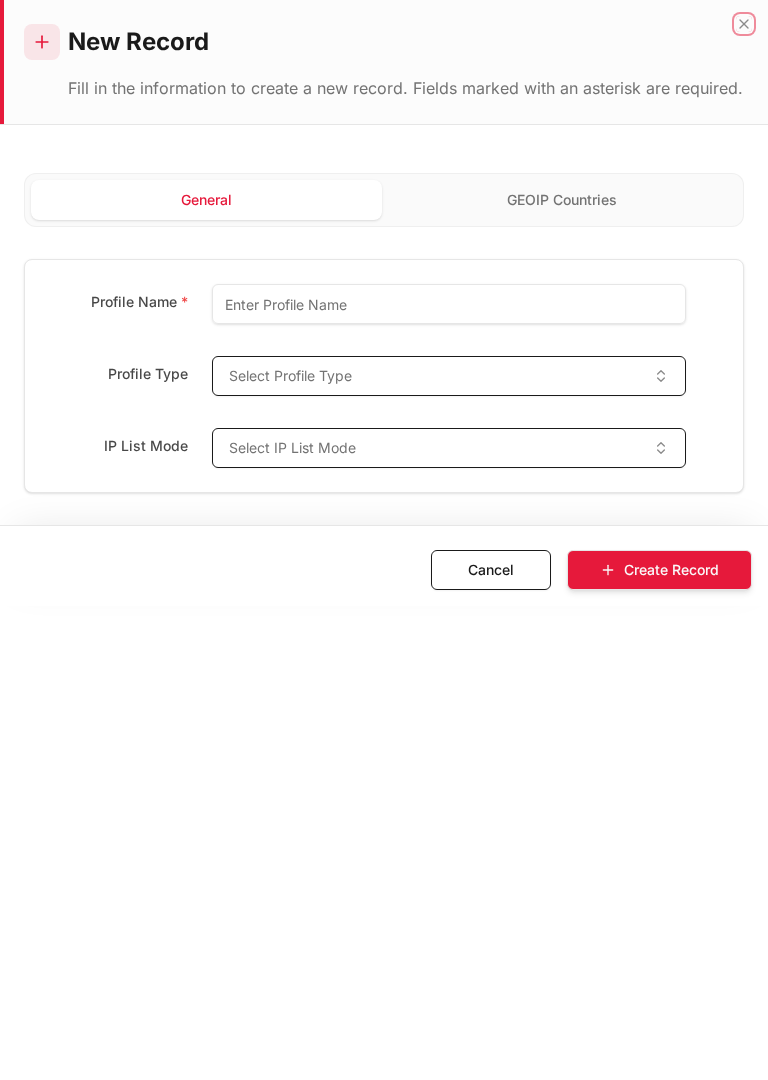
GEOIP Countries tab
- Open GEOIP Countries.
- Expand regions and set Allow on approved countries only. Use SET ALL → Block on each continent first, then Allow on specific countries.
| Region | Example countries | Action |
|---|---|---|
| North America | United States | Allow |
| Europe | United Kingdom | Allow |
| Asia | United Arab Emirates | Allow |
| All other countries | — | Block |
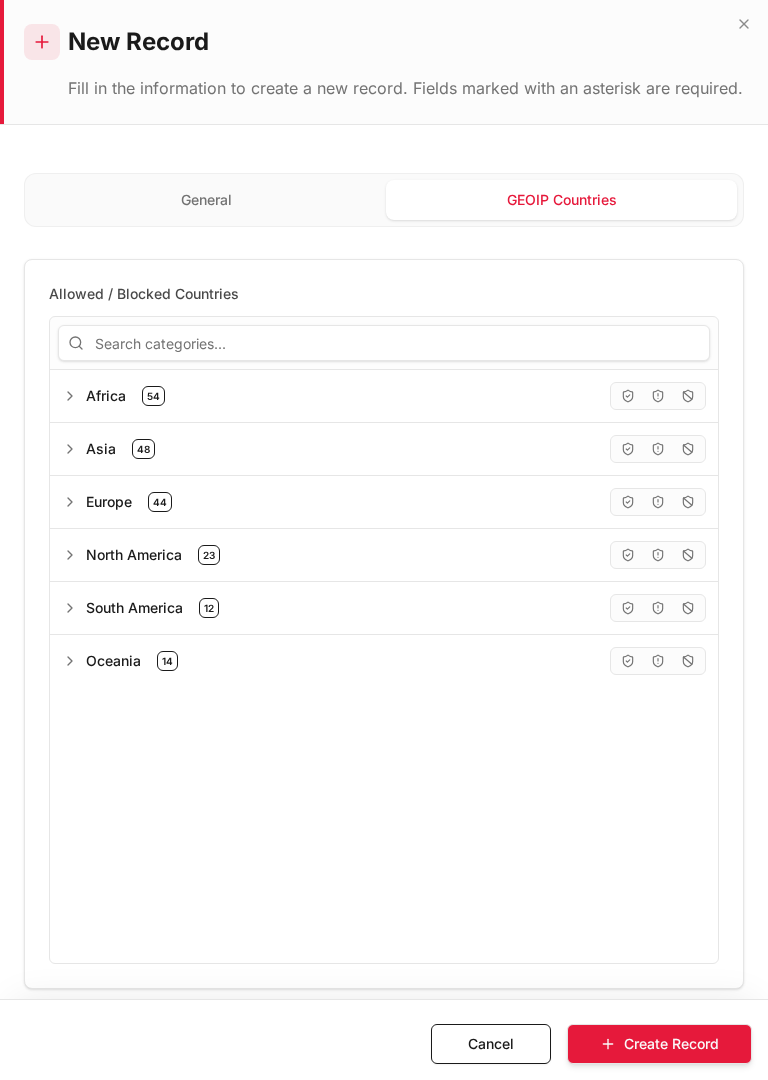
- Click + Create Record.
| IP List Mode | Behavior |
|---|---|
| whitelist | Only listed countries match Allow |
| blacklist | Listed countries are blocked; others pass |
| monitor | Listed countries logged/monitored |
See GeoIP Security.
Step 3 — Inline rule: LAN → WAN with Time + Destination GeoIP
- Go to Rules & Policies → Inline Rules.
- Click + Add New (place above a general deny rule).
General
| Field | Value |
|---|---|
| Rule Name | LAN_Internet_Work_Hours_GeoIP |
| Action | Allow |
| Status | Enabled |
Interfaces
| Field | Value |
|---|---|
| Source Interface | LAN (enp6s0) |
| Destination Interface | WAN (enp9s0) |
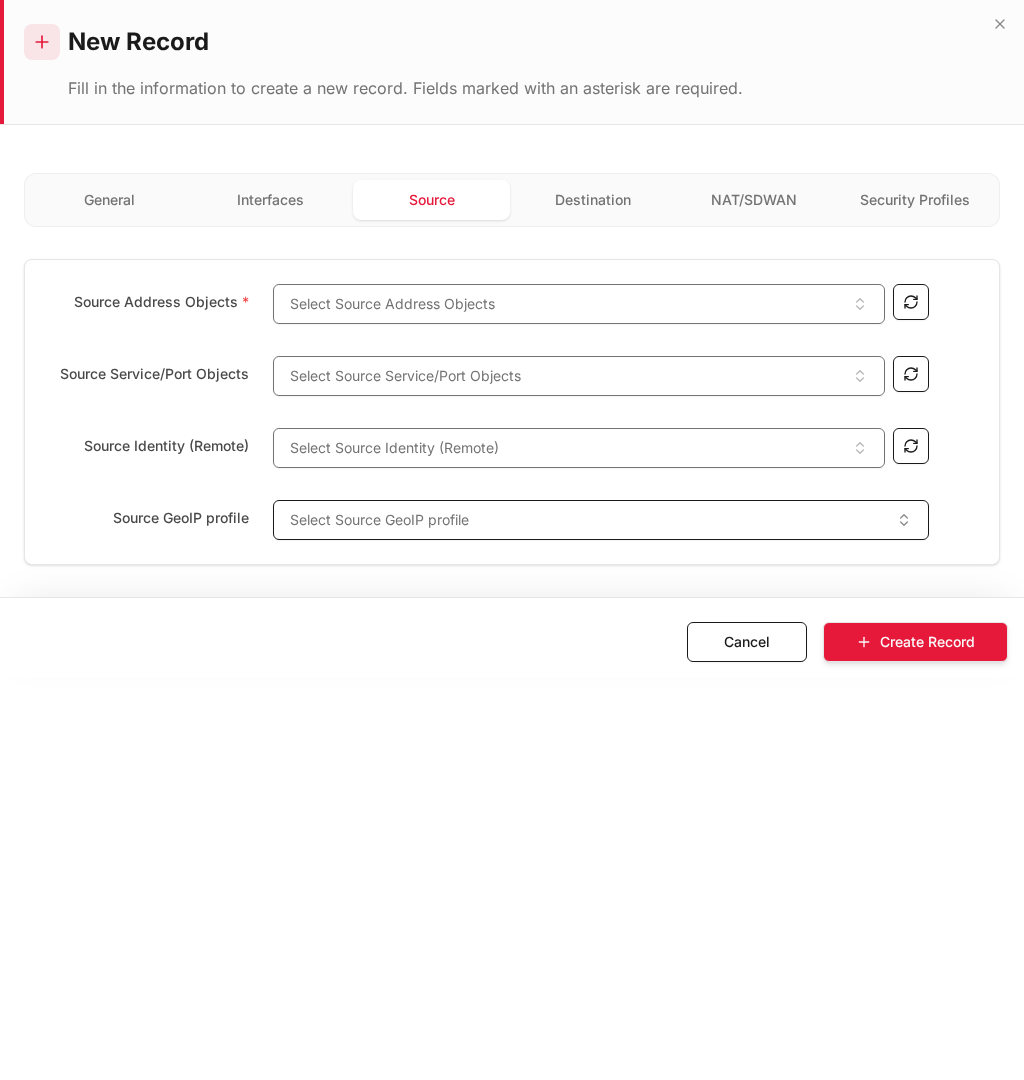
Source tab
| Field | Value |
|---|---|
| Source Address Objects * | LAN_Network |
| Source Service/Port Objects | Any |
| Source GeoIP profile | None (outbound country filter uses destination GeoIP) |
Destination tab
| Field | Value |
|---|---|
| Destination Address Objects * | Any |
| Destination Service/Port Objects * | HTTPS, HTTP, DNS (or Any per policy) |
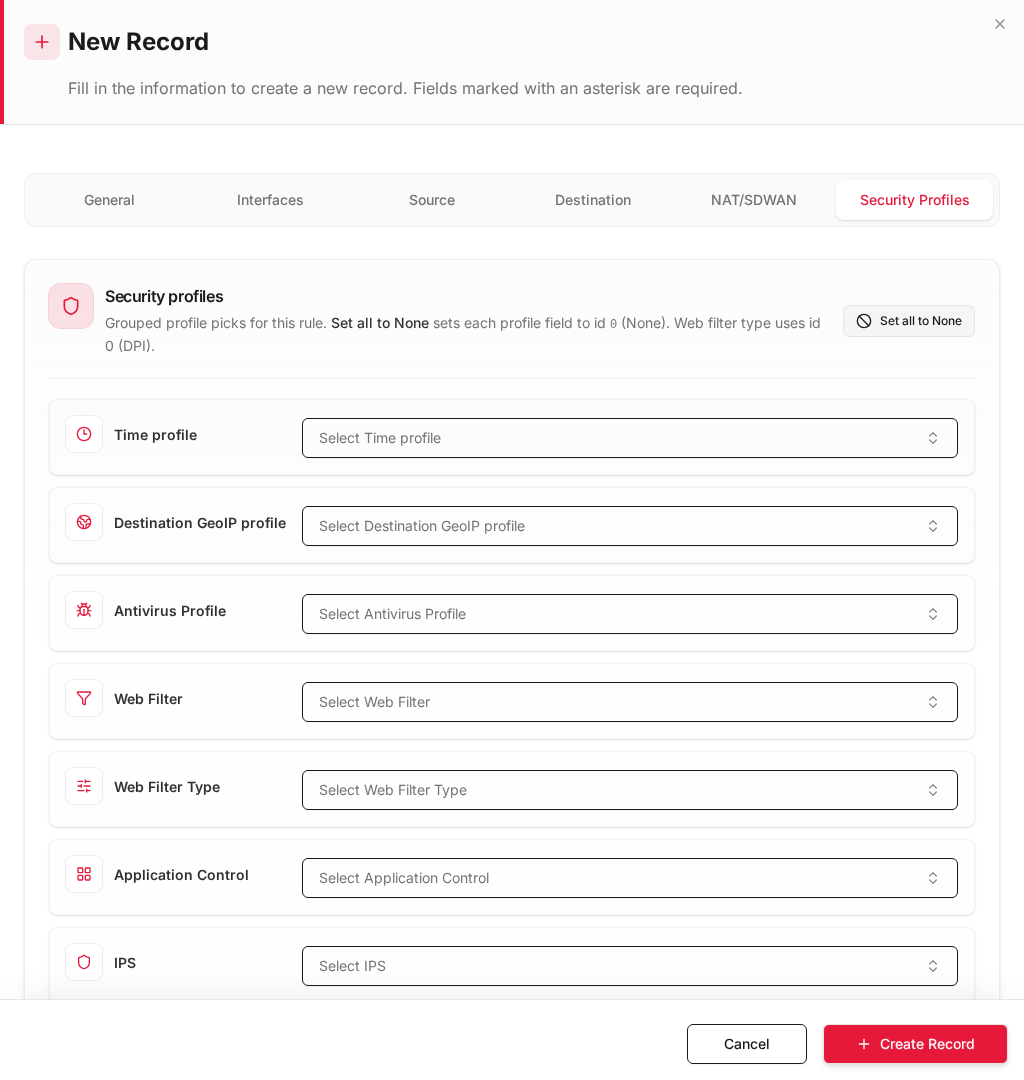
Security Profiles tab
| Field | Value |
|---|---|
| Time profile | Work_Hours_Sun_Thu |
| Destination GeoIP profile | Allow_Dest_US_GB_AE |
| Web Filter | Optional |
| IPS | Optional |
- Click + Create Record.
- Click Install Policy.
Expected results (outbound)
| Test | Time | Destination country | Result |
|---|---|---|---|
Browse https://www.google.com |
Tue 10:00 | US | Allowed |
| Browse UK news site | Wed 14:00 | GB | Allowed |
| Browse site in blocked country | Tue 11:00 | CN | Denied (GeoIP) |
| Any internet | Fri 10:00 | US | Denied (outside Time profile) |
| Any internet | Sun 19:00 | US | Denied (outside 08:00–17:00) |
Verify in Logs & Events → Firewall Security — look for POLICY_NAME = LAN_Internet_Work_Hours_GeoIP and REASON for GeoIP/time mismatch.
Step 4 — DNAT / published service: use Source GeoIP (not Destination)
When you publish an internal service (mail, VPN portal, web app) with DNAT, restrict which countries may connect using Source GeoIP profile on the Source tab.
Example: HTTPS web server published on WAN
| Field | Value |
|---|---|
| Rule Name | DNAT_Web_Server_Source_GeoIP |
| Source Interface | WAN |
| Destination Interface | LAN |
| Source Address | Any |
| Source GeoIP profile | Allow_Source_Gulf_Only (whitelist AE, SA, OM — example) |
| Destination Address | WAN VIP or DNAT object |
| Destination Service | HTTPS |
| Action | Allow |
| DNAT | Enabled → internal 192.168.100.20:443 |
| Field | Value |
|---|---|
| Destination GeoIP profile | None |
Do not assign Destination GeoIP profile on this rule. The server is inside your LAN; the country you want to filter is the remote client (source), not the destination.
Source vs Destination GeoIP — side by side
| LAN → WAN (Step 3) | DNAT / published service (Step 4) | |
|---|---|---|
| Question answered | Where may LAN users browse? | Who may connect inbound? |
| GeoIP field | Destination GeoIP profile | Source GeoIP profile |
| Rule tab | Security Profiles | Source |
| Time profile | Security Profiles → Work_Hours_Sun_Thu |
Optional (same field) |
| Typical mode | Destination whitelist | Source whitelist |
See X-Pool Overlapping NAT for DNAT rule structure.
Recommended rule order
| Priority | Rule name | Purpose |
|---|---|---|
| 1 | DNAT_Web_Server_Source_GeoIP |
Inbound published service — Source GeoIP |
| 2 | LAN_Internet_Work_Hours_GeoIP |
Outbound internet — Time + Destination GeoIP |
| 3 | Deny_All_Other |
Implicit / explicit deny |
Troubleshooting
| Symptom | Check |
|---|---|
| Internet works outside work hours | Time profile not assigned on Security Profiles tab; wrong schedule timezone |
| All countries blocked | GeoIP whitelist empty — add Allow on target countries |
| Wrong country blocked | GeoIP DB approximate; test with known IP; check IP List Mode |
| DNAT still open worldwide | Source GeoIP profile on Source tab — not Destination GeoIP |
| Published service broken after GeoIP | Whitelist too narrow — add client countries to Source profile |