ZTA Access Policy
Navigation: Scenarios → ZTA Access Policy
Configure ZTA access so a remote user can connect with the TOORCE ZTA Agent, pass device posture checks, complete login and MFA, and then access only the allowed assets pushed by the user’s ZTA Access Policy.
This scenario focuses on the difference between normal SSL VPN routing and enforced ZTA access:
| Mode | Result |
|---|---|
| Enforce ZTA Access disabled | User can access all pushed routes allowed by firewall policy |
| Enforce ZTA Access enabled | User can access only the assets listed in the ZTA access policy, with the configured IP, port, protocol, and access method |
Design overview
The TOORCE ZTA Agent performs a posture scan, logs in to the SSL/ZTA gateway, connects the tunnel, and then pulls the allowed asset list from the gateway. The asset list controls what the user sees in Remote access: RDP, Web, and SSH entries.
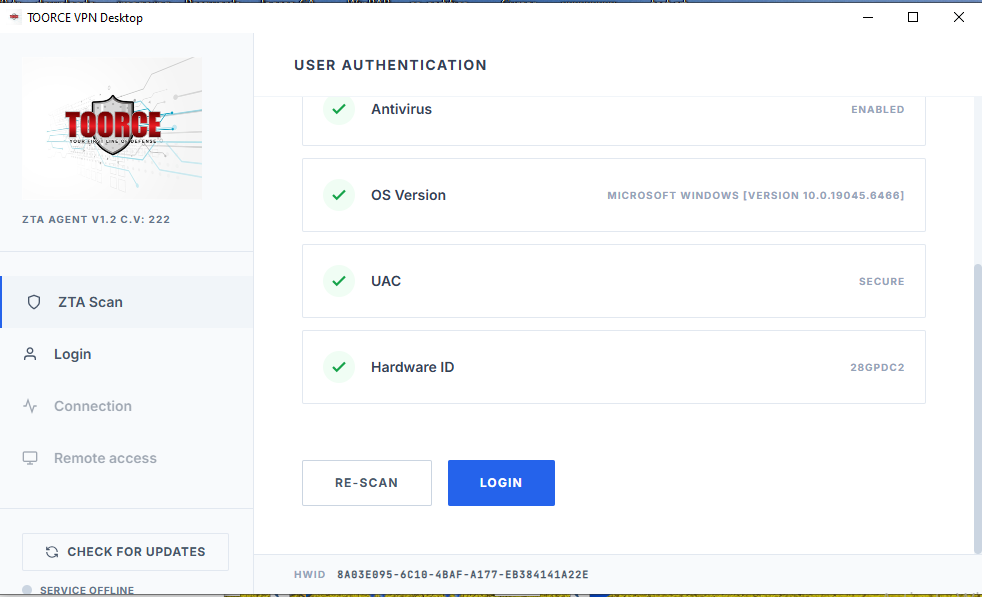
Figure 1 — ZTA posture scan checks antivirus, OS version, UAC, and device hardware ID
Example access policy
| User | Device ID / HWID | MFA | Enforce ZTA | Allowed assets |
|---|---|---|---|---|
anas |
8A03E095-6C10-4BAF-A177-EB384141A22E |
Enabled | Enabled | RDP to 192.168.100.80:3389, Web to 192.168.100.99:443, SSH to 192.168.100.15:22 |
Prerequisites
- ZTA/SSL Access profile exists
- SSL VPN listen rule and VPN-to-LAN rule are configured, as shown in SSL VPN Multi-Pool
- Local user or AD user exists
- TOORCE ZTA Agent installed on the endpoint
- Firewall can reach the target assets on the configured ports
Step 1 — Create or edit the user
Go to User Management or Auth & Users and edit the user who will connect with the TOORCE ZTA Agent.
| Field | Example | Notes |
|---|---|---|
| Username | anas |
Same username entered in the agent |
| Password | Strong password | Used at agent login |
| MFA | Enabled or Disabled | Enable MFA for stronger access control |
| Device ID / HWID | 8A03E095-6C10-4BAF-A177-EB384141A22E |
Restrict this user to known devices |
| Allowed device IDs | uuid1,uuid2,uuid3 |
Comma-separated UUID/HWID list if multiple devices are allowed |
If the user is restricted to device IDs, only endpoints whose TOORCE ZTA Agent reports a matching HWID can log in with that username and password.
MFA behavior
| MFA setting | Login behavior |
|---|---|
| Enabled | User enters username/password, then OTP |
| Disabled | User enters username/password only |
For remote access users, enable MFA unless there is a documented exception.
Step 2 — Add allowed assets under the user ZTA access policy
Open the user’s ZTA Access Policy and add every asset the user is allowed to open from the TOORCE Agent.
Asset examples
| Asset name | Type | Target | Port | Access method | Notes |
|---|---|---|---|---|---|
CD |
RDP | 192.168.100.80 |
3389 |
TOORCE Remote Desktop | Use TOORCE RDP instead of native RDP |
MAil |
Web | 192.168.100.99 |
443 |
TOORCE Browser | Use TOORCE Browser instead of native browser |
web |
SSH | 192.168.100.15 |
22 |
Embedded terminal | SSH opens inside the agent |
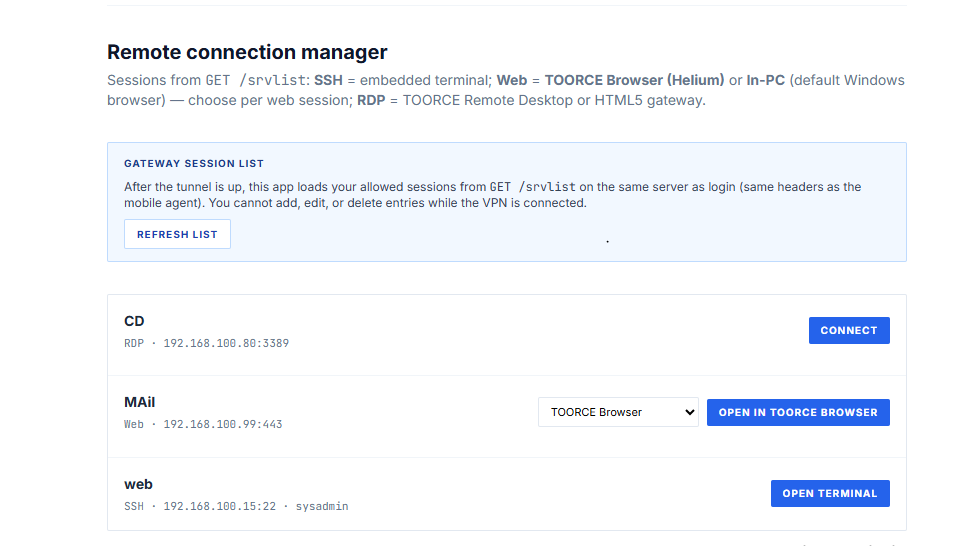
Figure 2 — ZTA access policy pushed to the agent after tunnel login
Access method options
| Protocol | Preferred ZTA method | Alternative |
|---|---|---|
| RDP | TOORCE Remote Desktop | HTML5 gateway |
| Web | TOORCE Browser (Helium) | In-PC / default Windows browser |
| SSH | Embedded terminal | None |
Use TOORCE-controlled methods when possible. They keep access inside the managed ZTA workflow and avoid exposing native clients directly to the internal network.
Step 3 — Configure temporary password behavior for target assets
For sensitive RDP/SSH assets, enable temporary password mode.
| Option | Behavior |
|---|---|
| Use temporary password | TOORCE Agent creates a temporary user/password on the target asset |
| Session disconnect | Temporary credentials are removed automatically |
| File transfer allowed | User can copy files through the ZTA session |
| File transfer blocked | Clipboard/file transfer is disabled for that session |
Recommended defaults:
| Asset type | Temporary password | File transfer |
|---|---|---|
| Domain controller / server RDP | Enabled | Block |
| Admin SSH | Enabled | Block unless required |
| Web application | Not required | Not applicable |
Temporary password mode requires the TOORCE Agent or helper service on the target asset so it can create and remove the temporary account at session start/end.
Step 4 — Enable Enforce ZTA Access on the SSL/ZTA profile
Go to VPN Tunnels → ZTA/SSL Access and edit the profile used by the user.
| Field | Value |
|---|---|
| Allowed Users | anas or zta_users |
| ZTA Access Profile | User/group access policy containing the allowed assets |
| Enforce ZTA Access | Enabled |
| VPN IP Pool | Example: 10.8.1.0/24 |
| Pushed Routes | Only routes required for ZTA assets |
Why Enforce ZTA Access matters
| Setting | User can access |
|---|---|
| Disabled | Any pushed route permitted by inline firewall rules |
| Enabled | Only the asset list returned by the ZTA access policy |
If Enforce ZTA Access is disabled, the VPN behaves like a broader SSL VPN: after login, the user can route to whatever the pushed routes and firewall rules allow. If Enforce ZTA Access is enabled, the TOORCE Agent uses the policy asset list and only exposes those exact IP/port entries.
Step 5 — User workflow in TOORCE ZTA Agent
1. Run posture scan
The user opens TOORCE VPN Desktop and starts ZTA Scan. The agent checks endpoint posture:
| Check | Example result |
|---|---|
| Antivirus | Enabled |
| OS Version | Microsoft Windows version |
| UAC | Secure |
| Hardware ID | 28GPDC2 / full HWID at bottom |
The bottom bar shows the full hardware UUID/HWID. Add this ID to the user if device binding is required.
2. Login
The user enters:
| Field | Example |
|---|---|
| Server IP | 192.168.100.1 |
| Port | 30443 |
| Username | anas |
| Password | User password |
| Route all traffic through VPN | Optional |
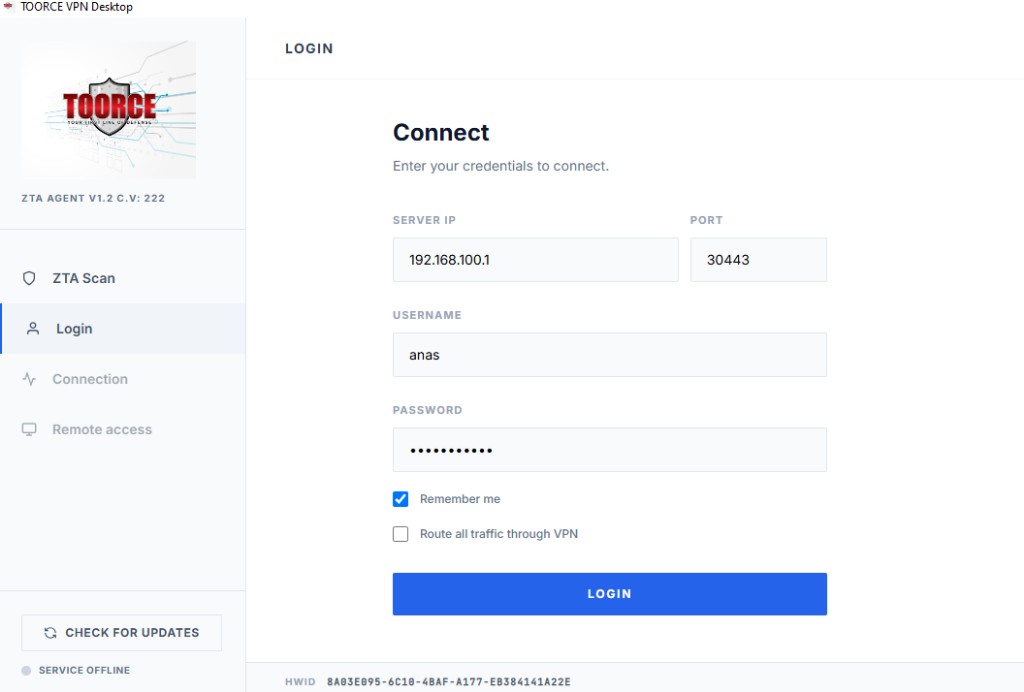
If MFA is enabled, the user completes OTP after username/password.
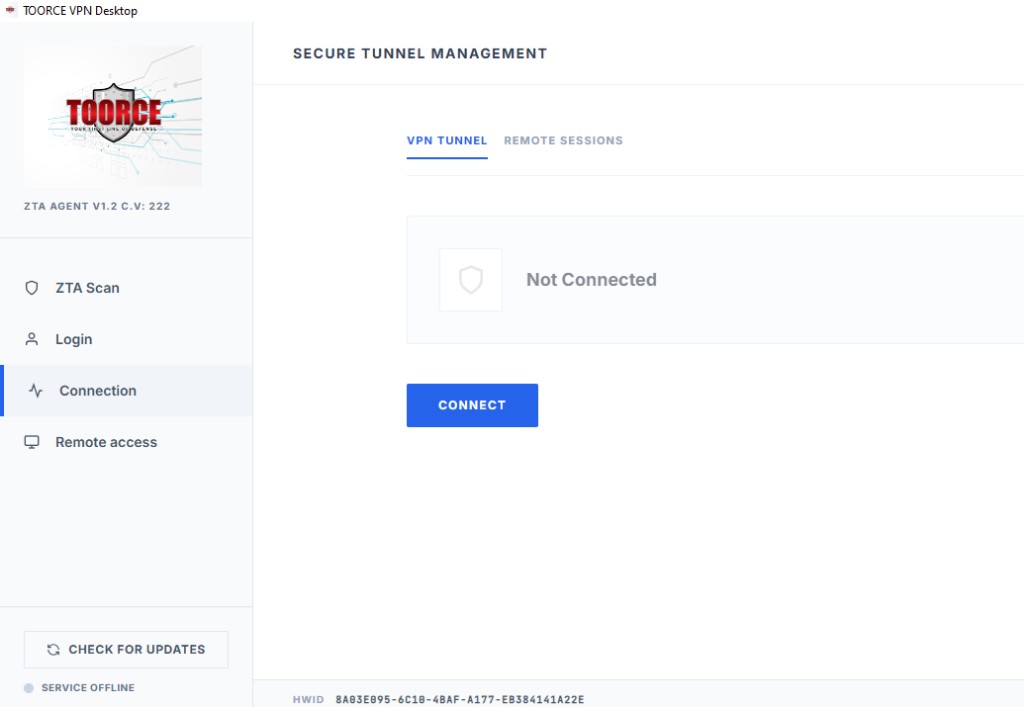
3. Connect tunnel
After successful posture and login, the user opens Connection and clicks Connect.
4. Open allowed remote sessions
After the tunnel is up, the Remote access page fetches the allowed sessions from the gateway endpoint. The user cannot add, edit, or delete entries while connected.
| Displayed asset | Protocol | Target | Button |
|---|---|---|---|
CD |
RDP | 192.168.100.80:3389 |
Connect |
MAil |
Web | 192.168.100.99:443 |
Open in TOORCE Browser |
web |
SSH | 192.168.100.15:22 |
Open Terminal |
Step 6 — Inline firewall rules
Use the same two-rule model from SSL VPN Multi-Pool:
| Rule | Purpose | Required fields |
|---|---|---|
| Rule 1 | Allow outside users to reach VPN listen IP/port | Source IF = WAN, Destination IF = Local VIP, Rule Type = dnat |
| Rule 2 | Allow SSL/ZTA users to reach LAN targets | Source IF = tun_srv_*, Destination IF = LAN |
For strict ZTA deployments, Rule 2 should allow only the assets listed in the ZTA policy:
| Source | Destination | Service |
|---|---|---|
SSL_Pool_Staff (10.8.1.0/24) |
CD (192.168.100.80) |
RDP 3389 |
SSL_Pool_Staff (10.8.1.0/24) |
Mail_Web (192.168.100.99) |
HTTPS 443 |
SSL_Pool_Staff (10.8.1.0/24) |
Web_SSH (192.168.100.15) |
SSH 22 |
This prevents policy bypass if a user tries to reach another host directly.
Verification
| Test | Expected result |
|---|---|
| Wrong device ID | Login blocked for that user |
| MFA enabled but OTP missing | Login blocked |
| Enforce ZTA disabled | User can reach pushed routes if firewall policy allows |
| Enforce ZTA enabled | User sees only allowed Remote access entries |
| RDP asset | Opens with TOORCE Remote Desktop / HTML5 gateway |
| Web asset | Opens with TOORCE Browser |
| SSH asset | Opens embedded terminal |
| File transfer blocked | Upload/download not available in session |
| Temporary password enabled | Temp user removed after disconnect |
Check logs:
- Logs & Events → SSL/ZTA Logs
- Logs & Events → ZTA Connected Clients
- Logs & Events → Firewall Security
Troubleshooting
| Symptom | Check |
|---|---|
| User logs in but sees too much network access | Enable Enforce ZTA Access and restrict Rule 2 destinations |
| Remote access list is empty | User has no allowed assets in ZTA Access Policy |
| Device rejected | HWID/UUID not listed on user; check comma-separated UUID list |
| RDP opens in native client | Set asset method to TOORCE Remote Desktop |
| Web opens in system browser | Set asset method to TOORCE Browser |
| SSH not opening | Confirm target 192.168.100.15:22 and Rule 2 service object |
| Temporary account remains | Check TOORCE helper/agent on target asset and disconnect event logs |