Remote SIEM & Email Notifications
Navigation: Scenarios → SIEM & SMTP Notifications
Forward firewall logs to a remote SIEM or syslog collector and send email alerts to administrators using the tabs under System Settings → General.
Both options are configured in the same settings dialog — open Edit and switch between the Syslog Server Settings and SMTP Settings tabs.
Architecture
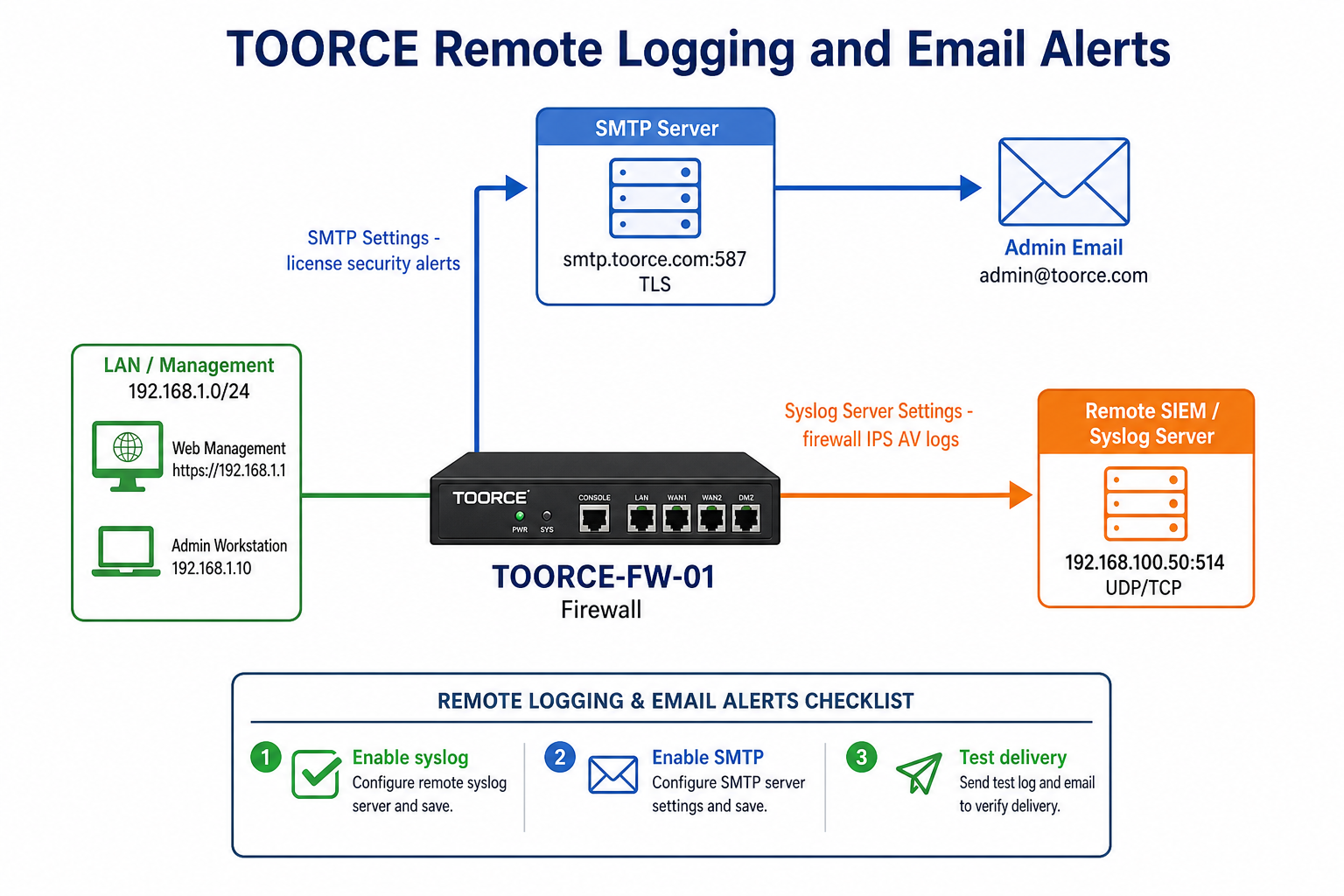
Figure 1 — Syslog forwarding to SIEM and SMTP alerts to admin
| Channel | Purpose | Typical destination |
|---|---|---|
| Syslog | Continuous log streaming to SIEM/SOC | Splunk, Elastic, Wazuh, Graylog, rsyslog |
| SMTP | Event-driven email alerts to admins | admin@toorce.com, NOC distribution list |
Prerequisites
- Firewall can reach the syslog/SIEM server on the configured port (default 514)
- Firewall can reach the SMTP relay on port 587 (TLS) or 465 (SSL)
- Valid SMTP credentials if the mail server requires authentication
- SIEM collector listening and configured to accept TOORCE firewall messages
Part A — Forward logs to a remote SIEM (Syslog)
Step 1 — Open Syslog settings
- Go to System Settings → General.
- Click Edit on the system settings row.
- Select the Syslog Server Settings tab.
Step 2 — Configure syslog forwarding
| Field | Value | Notes |
|---|---|---|
| Enabled | ✓ Enabled | Turns on remote syslog forwarding |
| Syslog Host | 192.168.100.50 |
IP or hostname of SIEM/syslog collector |
| Port | 514 |
Standard syslog; use 6514 for TLS if supported |
| Protocol | UDP or TCP |
TCP recommended for reliable delivery to SIEM |
| Facility | local0 |
Match your SIEM parser configuration |
| Severity | info |
Minimum level forwarded (debug, info, warning, err) |
| Description | SIEM_Production |
Label for this destination |
Example — Splunk / Elastic SIEM:
| Field | Example |
|---|---|
| Syslog Host | siem.corp.local |
| Port | 514 |
| Protocol | TCP |
| Facility | local0 |
Example — Dedicated syslog relay (rsyslog):
| Field | Example |
|---|---|
| Syslog Host | 192.168.100.50 |
| Port | 514 |
| Protocol | UDP |
Step 3 — Save and verify on the SIEM
- Click Save.
- On the SIEM server, confirm incoming messages from the firewall hostname (
TOORCE-FW-01). - Generate test traffic (e.g. blocked connection) and verify events appear in the SIEM within seconds.
- Optionally cross-check Logs & Events → Local Logs on the firewall for forwarding errors.
What gets forwarded
Typical syslog streams include:
| Log type | Source on firewall |
|---|---|
| Firewall / flow logs | Inline rule allow/deny events |
| IPS events | IPS Security logs |
| System events | Local Logs (daemon, admin actions) |
| Authentication | SSO / admin login events |
Tune Severity to reduce noise — use
warningorerrin production if the SIEM volume is too high.
Part B — Send email notifications to admin (SMTP)
Step 1 — Open SMTP settings
- Go to System Settings → General.
- Click Edit on the system settings row.
- Select the SMTP Settings tab.
Step 2 — Configure SMTP email alerts
| Field | Value | Notes |
|---|---|---|
| Enabled | ✓ Enabled | Activates email notifications |
| SMTP Server | smtp.toorce.com |
Your mail relay or SaaS (Office 365, Gmail relay) |
| SMTP Port | 587 |
TLS submission port (or 465 for SSL) |
| Encryption | TLS | Recommended for port 587 |
| SMTP Username | alerts@toorce.com |
Auth account on the mail server |
| SMTP Password | (password) |
Stored securely on the firewall |
| From Email | firewall@toorce.com |
Sender address shown to recipients |
| To Email | admin@toorce.com |
Primary admin / NOC inbox |
Example — Office 365 relay:
| Field | Example |
|---|---|
| SMTP Server | smtp.office365.com |
| Port | 587 |
| Encryption | TLS |
| Username | alerts@corp.onmicrosoft.com |
| From | firewall@corp.com |
| To | netops@corp.com |
Example — Internal Postfix relay:
| Field | Example |
|---|---|
| SMTP Server | 192.168.100.5 |
| Port | 25 |
| Encryption | None (internal network only) |
| To | admin@toorce.com |
Step 3 — Save and test email delivery
- Click Save.
- Trigger a test alert if the UI provides Send test email (or wait for a system event such as update available / license notice).
- Confirm the message arrives at To Email and is not quarantined by spam filters.
- Add the firewall sender address to SPF/DKIM allow lists if using external mail providers.
Typical email alert types
| Alert | When sent |
|---|---|
| License / subscription expiry | Before license end date |
| System update available | New firmware or patch published |
| Security event threshold | Critical IPS or admin login failure (if enabled) |
| Resource warning | Disk, memory, or service failure |
Combined configuration checklist
| Step | Syslog (SIEM) | SMTP (Email) |
|---|---|---|
| 1 | Syslog Server Settings tab → Enabled | SMTP Settings tab → Enabled |
| 2 | Enter SIEM IP/hostname + port | Enter SMTP server + port + TLS |
| 3 | Choose TCP/UDP and facility | Enter username, password, From, To |
| 4 | Save | Save |
| 5 | Verify events in SIEM | Verify test email in admin inbox |
Network and security requirements
| Requirement | Syslog | SMTP |
|---|---|---|
| Outbound access from firewall | To SIEM :514 (or :6514) |
To relay :587 / :465 |
| Inline rule | Allow firewall → SIEM on syslog port | Allow firewall → SMTP relay |
| Encryption | Optional TLS syslog | TLS strongly recommended |
| Credentials | Usually none (IP-based trust) | SMTP username/password |
Ensure an inline rule allows the firewall itself (management traffic) to reach the SIEM and SMTP servers on the LAN or DMZ management network.
Troubleshooting
| Symptom | Syslog check | SMTP check |
|---|---|---|
| No logs in SIEM | Ping/curl SIEM port; verify Enabled; check Protocol TCP vs UDP | — |
| Partial logs only | Lower severity filter; check SIEM disk/quota | — |
| Connection refused | SIEM service running; firewall rule allows port 514 | SMTP port/firewall rule |
| No email received | — | Verify Enabled, credentials, From/To addresses |
| Email in spam | — | SPF/DKIM; use authenticated relay |
| TLS errors | — | Match Encryption to port (587=TLS, 465=SSL) |
Check Logs & Events → Local Logs on the firewall for syslog or SMTP daemon error messages.
Related topics
- System Settings — General
- Local Logs
- Firewall Security Logs
- IPS Security Logs
- Inline Rules — allow management traffic to SIEM/SMTP
- All Scenarios