Administrators
Navigation: User Management → Administrators
Manage accounts that can log in to the TOORCE Firewall web admin panel and CLI. Each administrator has a username, password, optional MFA, and an Access profile that controls which areas of the panel they can configure.
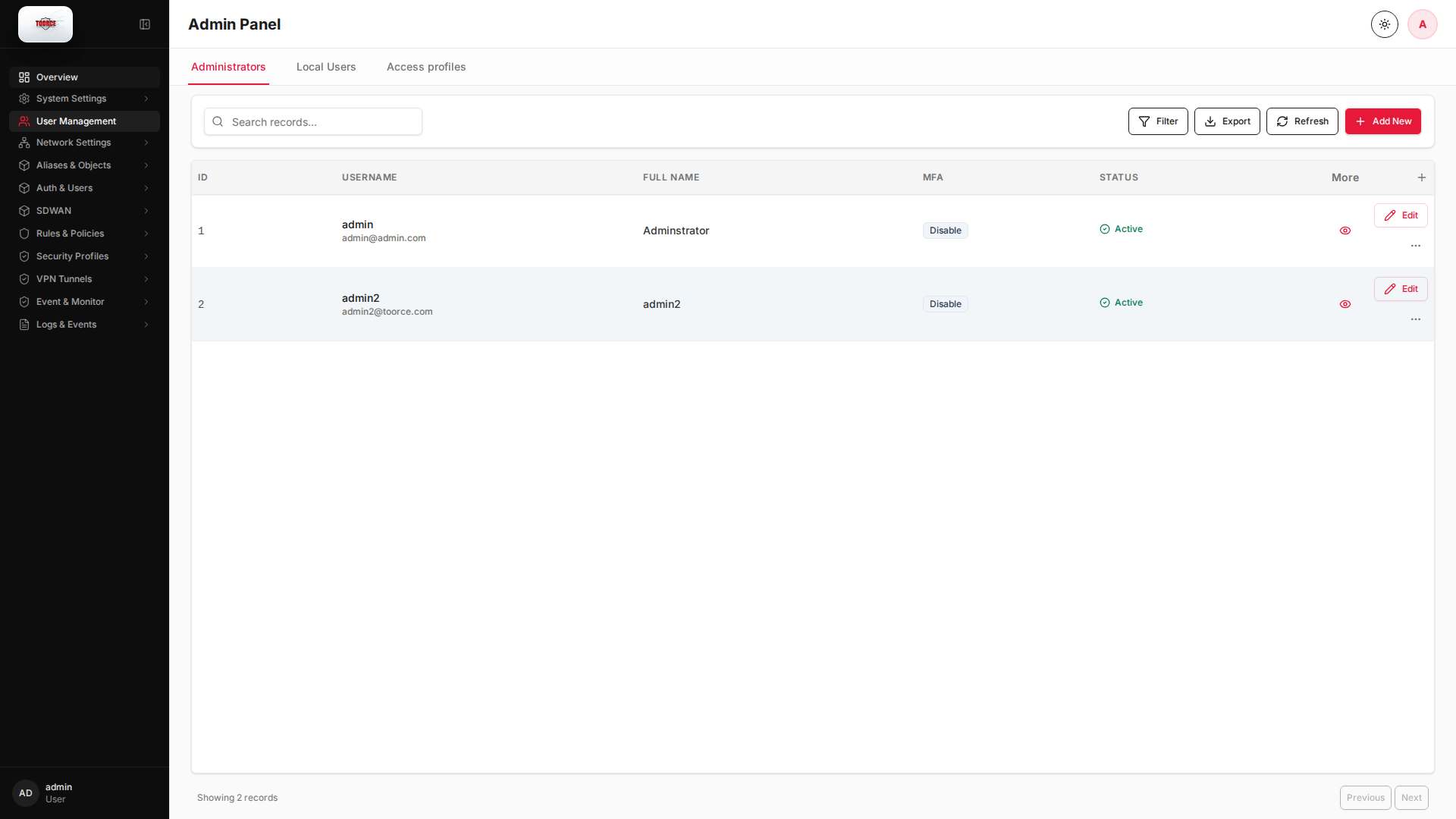
Add / Edit forms
Click + Add New to open the creation dialog, or Edit on an existing row to modify a record.
List view
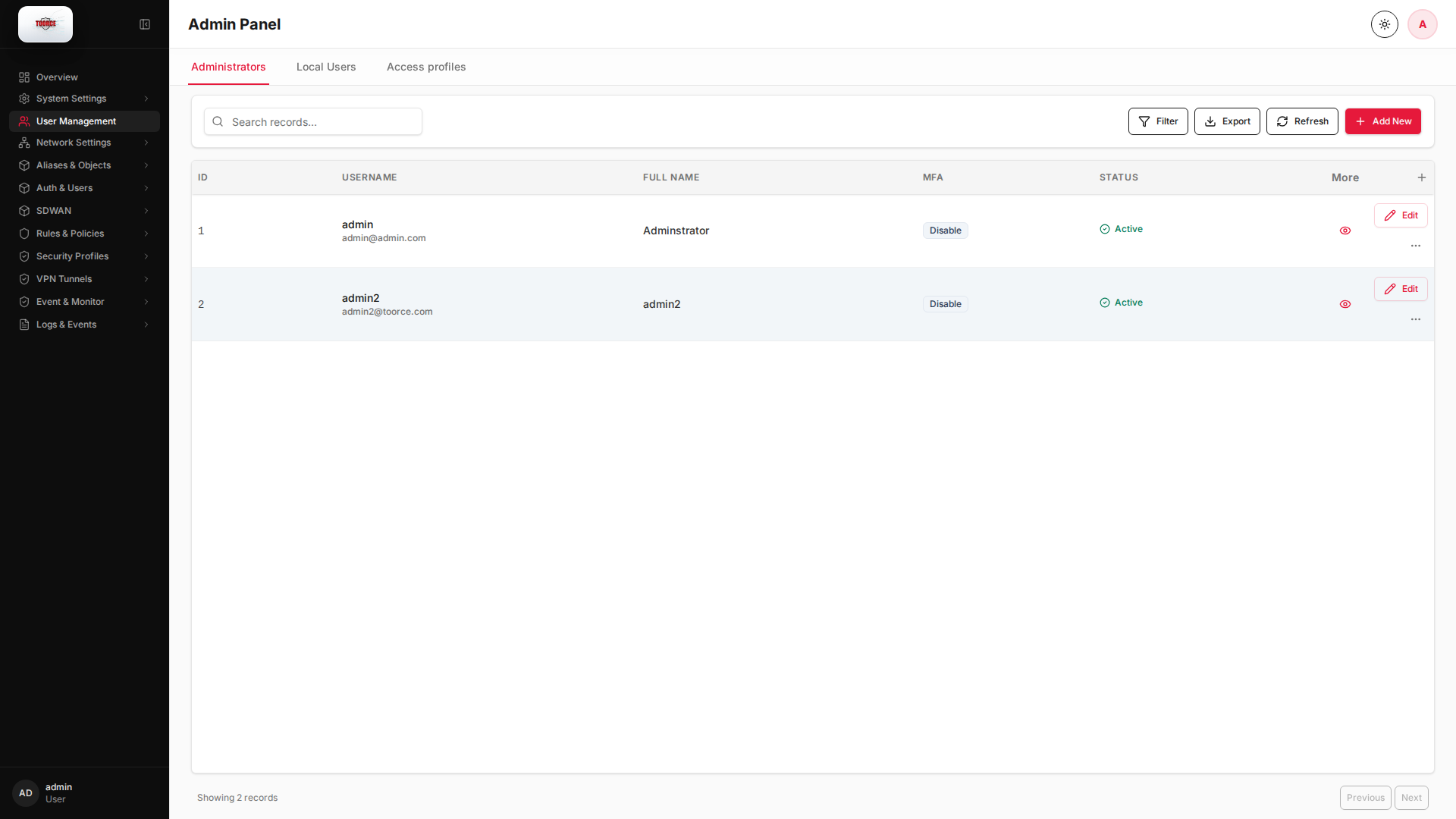
Add form
Empty form after clicking + Add New:
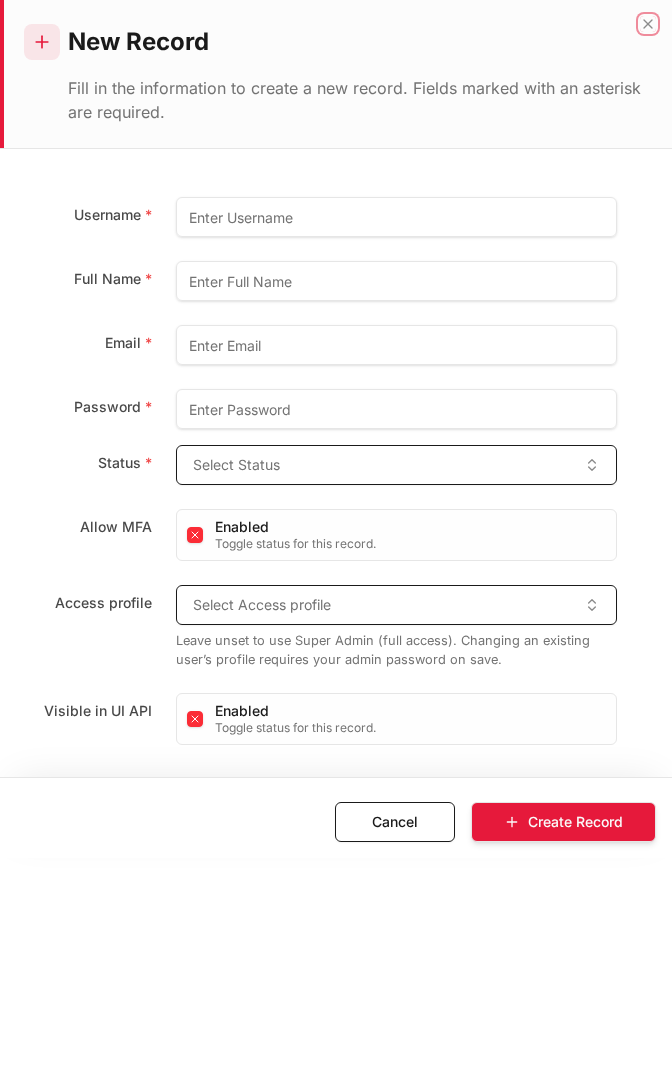
Same form filled with example data (do not save in production):
Edit form
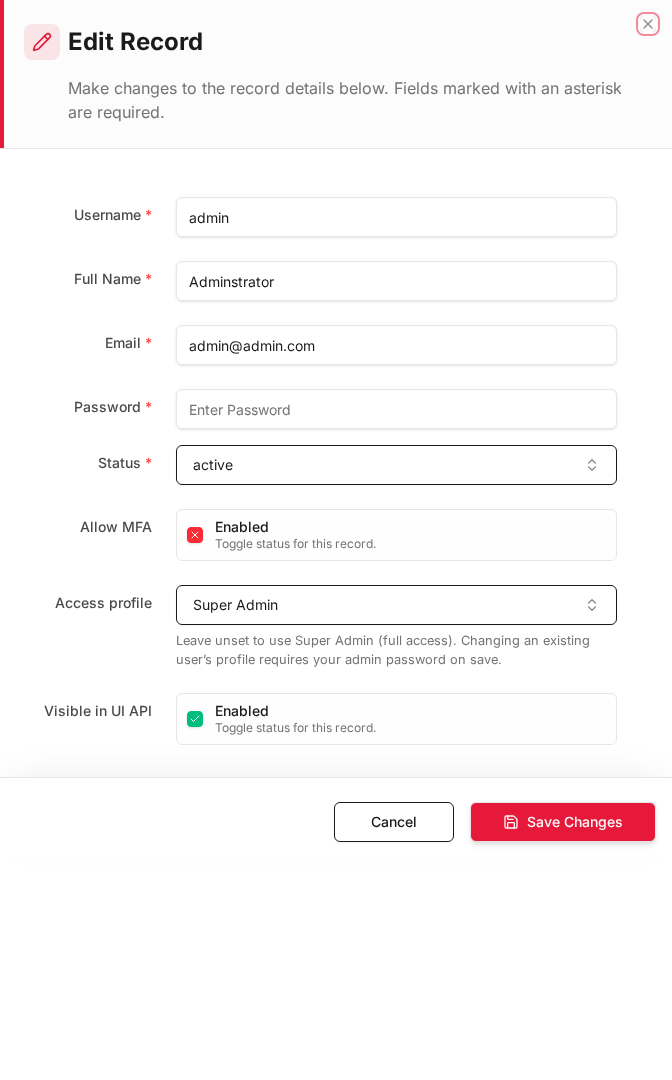
Existing record opened with Edit:
Form fields explained
Dialog title: New Record — Administrator
| Field | Required | Description | Example value |
|---|---|---|---|
| Username | Yes | Login name for the admin panel | network_admin |
| Full Name | Yes | Display name shown in the UI | Network Administrator |
| Yes | Contact email for alerts and password recovery | admin@toorce.com |
|
| Password | Yes | Strong password for authentication | (secure password) |
| Confirm Password | Yes | Must match Password exactly | (same as password) |
| Status | Yes | Active or Inactive — inactive admins cannot log in | Active |
| Allow MFA | No | Enable multi-factor authentication for this account | Enabled |
| Access profile | No | RBAC profile — leave unset for Super Admin (full access) | Security_Only |
| Visible in UI API | No | Whether this record appears in API responses | Enabled |
Technical background
Privileged access management
Administrator accounts have elevated privileges on the firewall itself (not end-user network access). This maps to Privileged Access Management (PAM) in security frameworks.
Best practices (NIST/CIS)
- Unique accounts per admin (no shared passwords)
- MFA on all admin accounts
- Least-privilege access profiles
- Session timeout (default configurable in System Settings)
- Audit logging of admin actions
Access profiles
Role-based access control (RBAC) limits which configuration areas each admin can modify — preventing a network admin from changing security rules, for example.
Table columns
| Column | Description |
|---|---|
| ID | Administrator ID |
| Username | Login name and email |
| Full Name | Display name |
| MFA | Multi-factor authentication (Enable / Disable) |
| Status | Active or Inactive |
How to add an administrator
- Go to User Management → Administrators tab.
- Click Add New.
- Fill in the form:
| Field | Required | What to enter |
|---|---|---|
| Username | Yes | Login name, e.g. admin2 |
| Yes | admin2@toorce.com |
|
| Full Name | Yes | Display name |
| Password | Yes | Strong password (min complexity enforced) |
| Password Type | Yes | Local or other auth mode |
| Access profile | Yes | Select from Access profiles |
| Allow MFA | No | Enable MFA for this account |
| MFA type | If MFA on | TOTP or other method |
| Admin Status | Yes | Active |
- Click Save.
Example
| Field | Value |
|---|---|
| Username | network_admin |
netadmin@toorce.com |
|
| Full Name | Network Administrator |
| Access profile | Network_Only (custom profile) |
| MFA | Enabled |
| Status | Active |
How to edit an administrator
- Click Edit on the administrator row.
- Modify fields (leave password blank to keep current password).
- Click Save.
Access profiles
The Access profile controls which sidebar sections the administrator can see and edit. Configure profiles under Access profiles.
| Profile type | Typical use |
|---|---|
| Full access | Super admin — all sections |
| Read-only | Monitoring / audit only |
| Network only | Interfaces, routes, SDWAN |
| Security only | Rules, profiles, logs |
MFA configuration
| Step | Action |
|---|---|
| 1 | Enable Allow MFA on the administrator |
| 2 | Select MFA type |
| 3 | Administrator scans QR code on next login |
| 4 | MFA column shows Enable when active |
Where administrators are used
| System | Usage |
|---|---|
Web admin panel (:10443) |
Login authentication |
| SSH/CLI | If SSH admin enabled on interface |
| SSO | If SSO listener configured |
| SSO Login Logs | Authentication events |
Security recommendations
- Change the default
adminpassword immediately - Assign least-privilege Access profiles
- Enable MFA for all admin accounts
- Disable unused accounts (set Status to Inactive)
- Restrict admin access to trusted interfaces — see Interfaces
Related topics
Reference: FortiGate — Administrators