Multi-WAN (SDWAN)
Navigation: SDWAN → Multi-WAN
Configure multiple WAN links with load balancing and failover. Each WAN interface is assigned a weight and priority for traffic distribution and automatic failover.
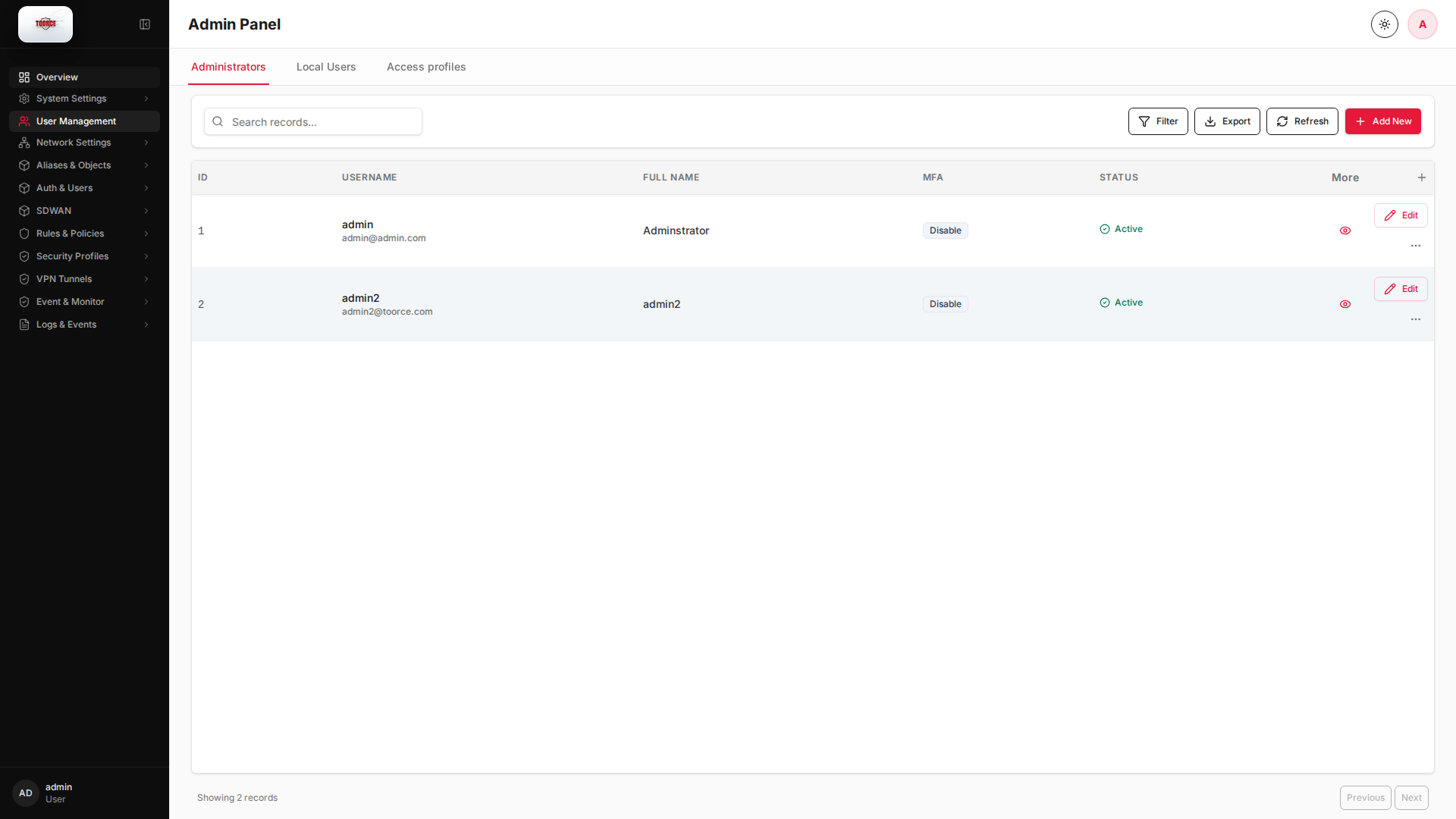
Add / Edit forms
Click + Add New to open the creation dialog, or Edit on an existing row to modify a record.
List view
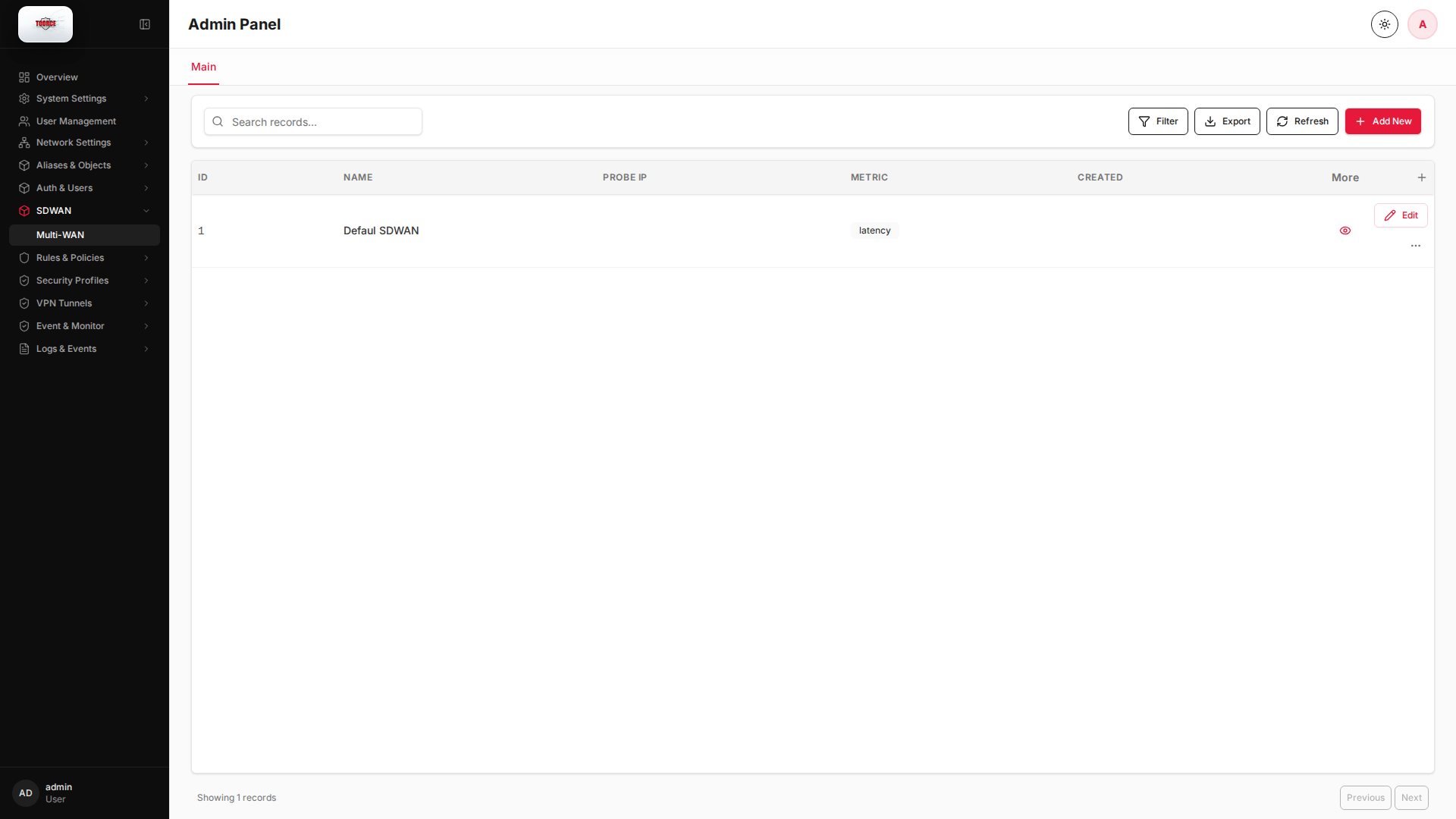
Add form
Empty form after clicking + Add New:
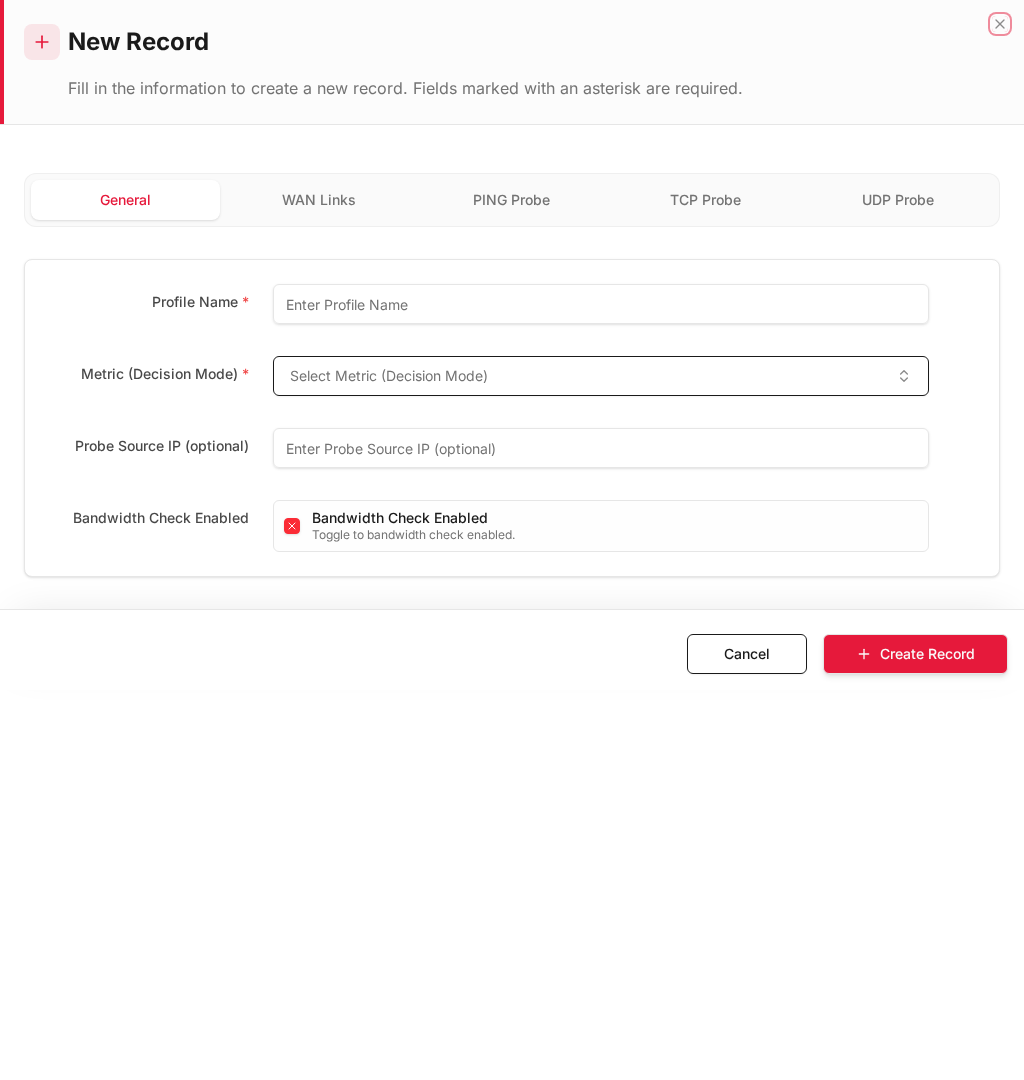
Same form filled with example data (do not save in production):
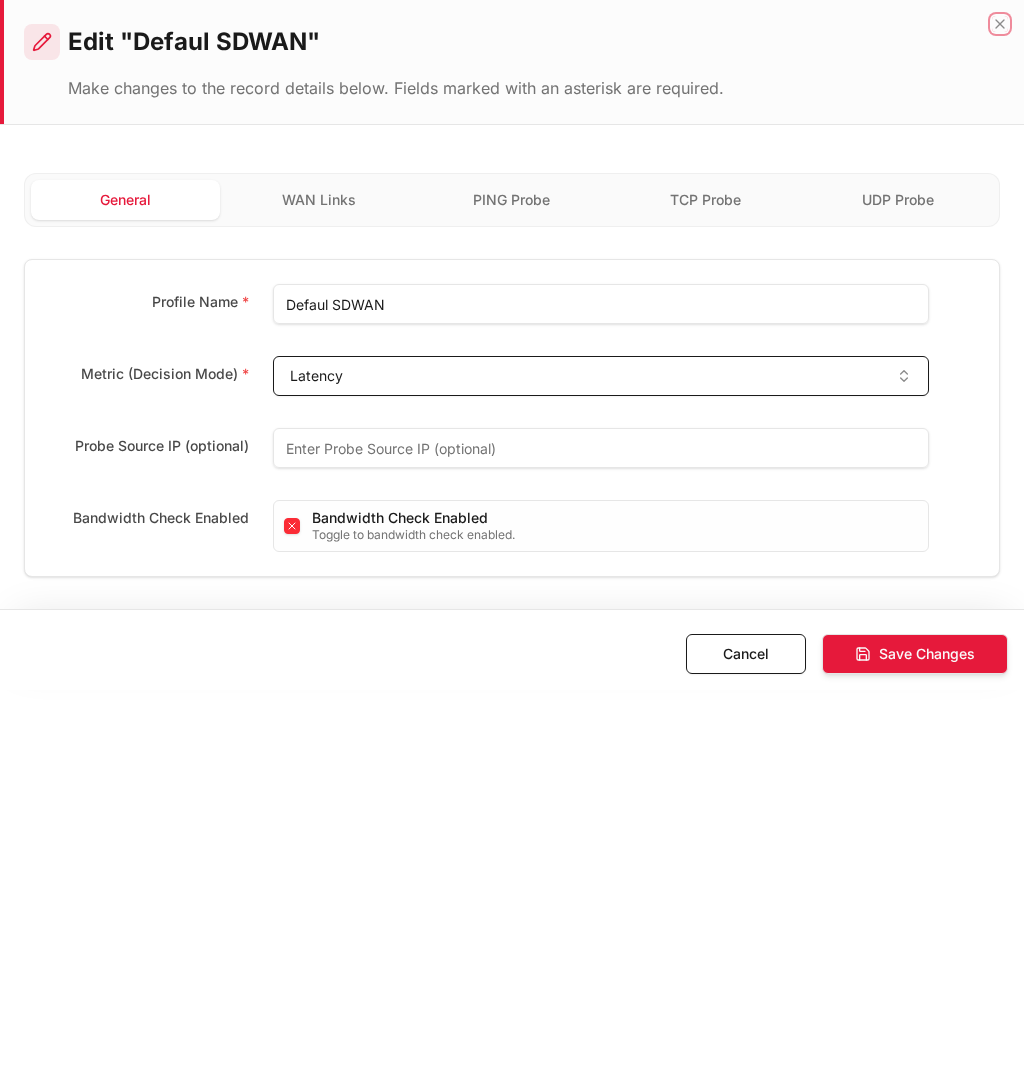
Edit form
Existing record opened with Edit:
Form fields explained
Dialog title: New Record — Multi-WAN Link
| Field | Required | Description | Example value |
|---|---|---|---|
| Interface Name | Yes | WAN interface for this link | enp9s0 |
| Gateway | Yes | Next-hop IP (empty for PPPoE) | 192.168.1.1 |
| Weight | Yes | Load-balance proportion | 50 |
| Priority | Yes | Failover order (1 = highest) | 1 |
| Enabled | Yes | Include in SDWAN group | Yes |
Technical background
SD-WAN / Multi-WAN
Software-Defined WAN distributes traffic across multiple internet links using weighted load balancing and priority-based failover.
Concepts
| Term | Meaning |
|---|---|
| Weight | Proportion of traffic sent on this link |
| Priority | Failover order (1 = first choice) |
| Health probe | Ping/TCP/UDP check to detect link failure |
| Failover | Automatic switch to next-priority link |
Security relevance
Multi-WAN improves availability (no single ISP failure takes you offline) and can separate traffic types (e.g. guest on WAN2, corporate on WAN1).
How to configure Multi-WAN
- Go to SDWAN → Multi-WAN.
- Click Add New for each WAN link.
- Fill in:
| Field | Required | What to enter |
|---|---|---|
| Interface Name | Yes | WAN interface, e.g. enp9s0, pp_enp9s0 |
| Gateway | Yes | Next-hop IP (leave empty for PPPoE) |
| Weight | Yes | Load-balance weight (higher = more traffic) |
| Priority | Yes | Failover priority (1 = highest) |
| Enabled | Yes | ✓ to include in SDWAN group |
- Click Save.
Example: Dual WAN setup
| Interface | Gateway | Weight | Priority | Role |
|---|---|---|---|---|
enp9s0 |
192.168.1.1 |
50 | 1 | Primary WAN |
enp8s0 |
10.10.10.1 |
50 | 2 | Backup WAN |
Health monitoring
SDWAN continuously probes each link (ping/TCP/UDP). Status visible in:
- M-WAN Logs — link health history
- Dashboard → Cloud Connectivity
| Column | Description |
|---|---|
| PROFILE | SDWAN profile name |
| INTERFACE | WAN interface |
| GATEWAY | Probe target |
| PING/TCP/UDP | Probe results |
| OVERALL | Combined health status |
| ACTIVE LINK | Currently selected link |
Where SDWAN is used
| Location | Field |
|---|---|
| Inline Rules | SDWAN Profile — route traffic via specific WAN |
| M-WAN Logs | Link status and failover events |