TOORCE HV
Product Guide
Type-1 hypervisor · Web management console
1. Introduction
TOORCE HV is a Type-1 hypervisor appliance (Permital Hypervisor on Debian) with a built-in HTTPS management console. You manage hosts, storage, networks, virtual machines, resource profiles, and datacenter clusters from the browser—no separate management stack is required on day one.
This guide walks through the console screens that matter for daily operations. Images are under docs/images/ and are sized for A4 / letter PDF export.
2. Sign in
Open the host management address in a browser (HTTPS). Sign in with a console account.
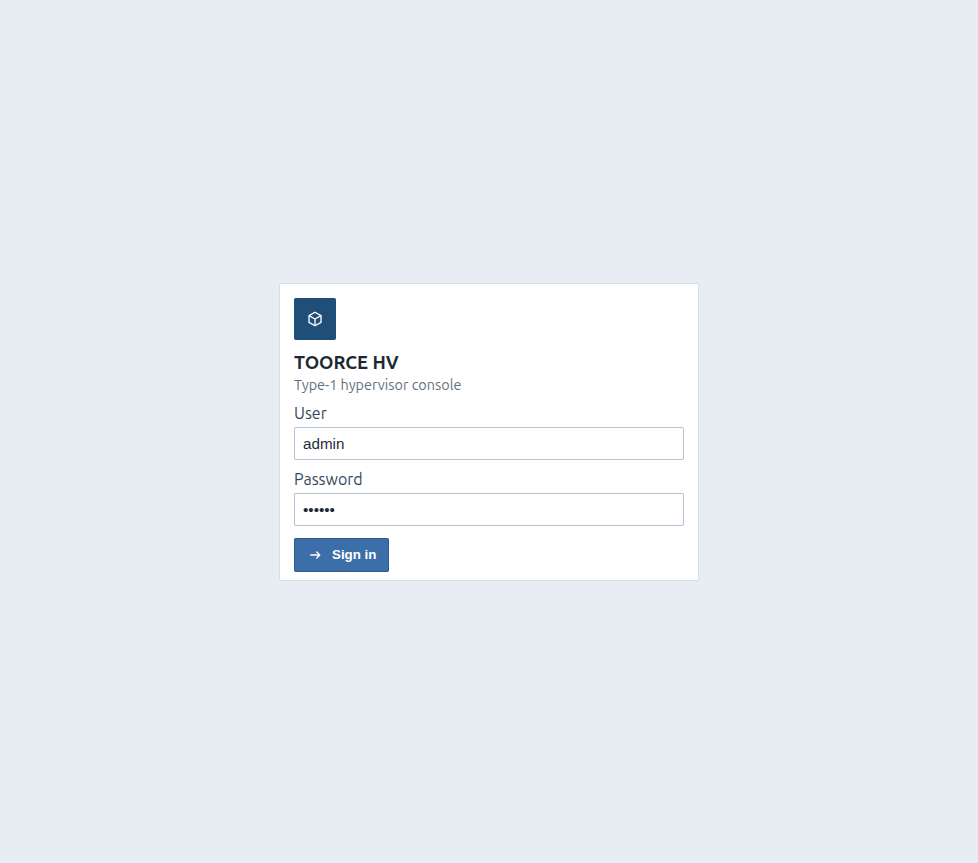
After a successful login you land on the Hypervisor status page (or the first page your role allows).
3. Hypervisor status
Datacenter → Hypervisor shows whether the management system is running, guest types supported, CPU virtualization, serial number, uptime, VM counts, management address, and control plane memory/disk utilization.
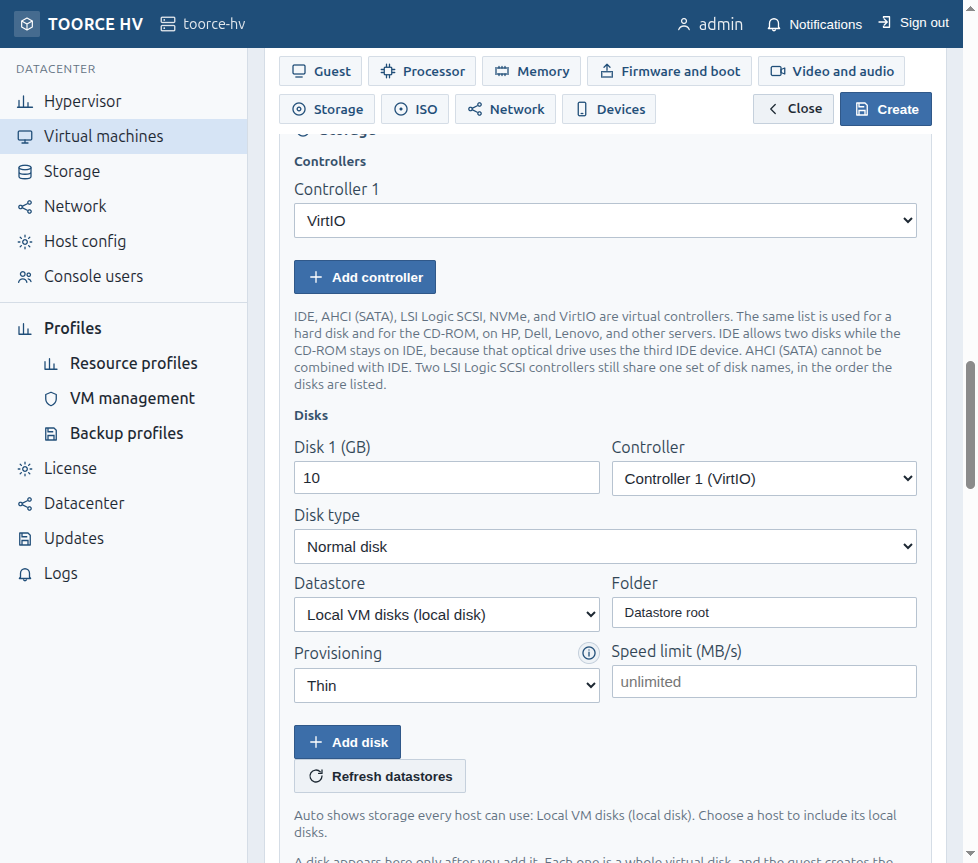
Use this page as the health check before creating guests or joining a cluster.
4. Virtual machines
Datacenter → Virtual machines lists guests with power state, memory, processors, and actions (create, open hardware, console, power).
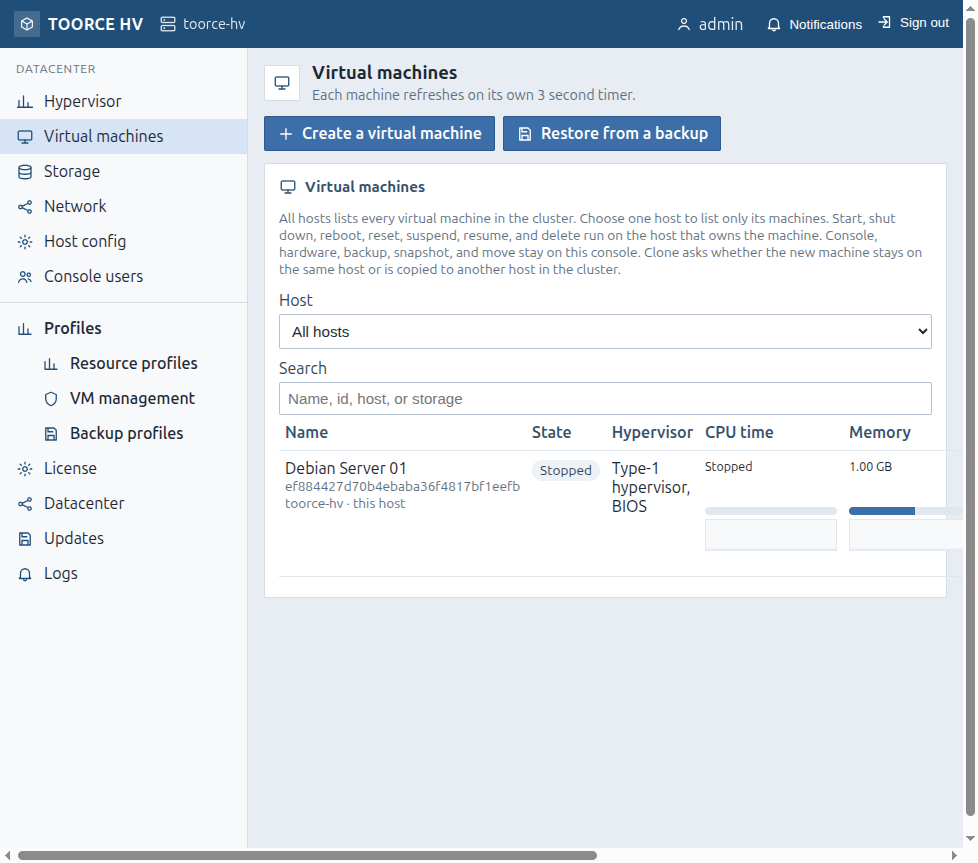
Typical flow:
- Ensure a datastore is mounted and (if needed) formatted.
- Create a VM and set firmware, CPU, memory, disks, and NICs.
- Attach an ISO from a folder on a datastore when installing an OS.
- Optionally enable CPU pinning and/or Toorce Virtual Disk on the hardware form (see later chapters).
5. Storage and datastores
Datacenter → Storage lists local and attached datastores (server disk, USB, NFS, iSCSI, Fibre Channel, NVMe, and similar). You can add, mount, unmount, format, open, and remove datastores without merging unrelated arrays into one pool.
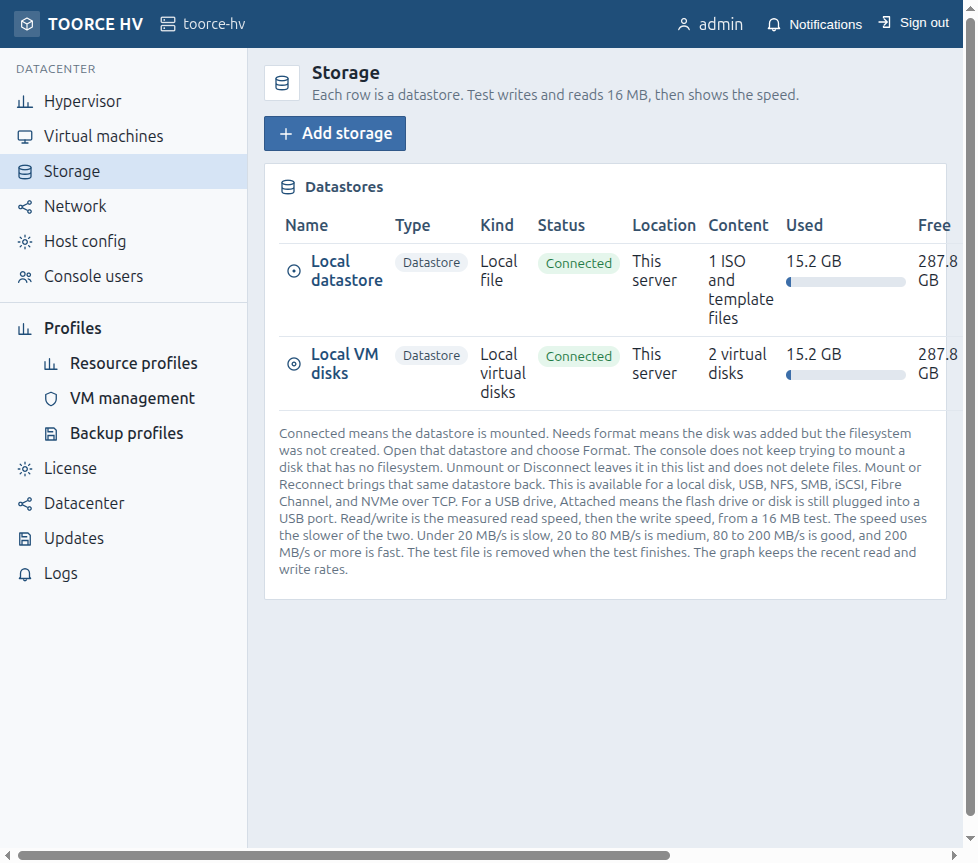
Each datastore stays independent. Virtual machine disks and ISO files are written to a chosen datastore (and optional folder).
6. Folder-based storage
Inside an open datastore you create folders with human-readable labels. Folders organize ISO images, templates, and VM disk files. When you create or move a disk, the console can place it in a selected folder instead of only at the datastore root.
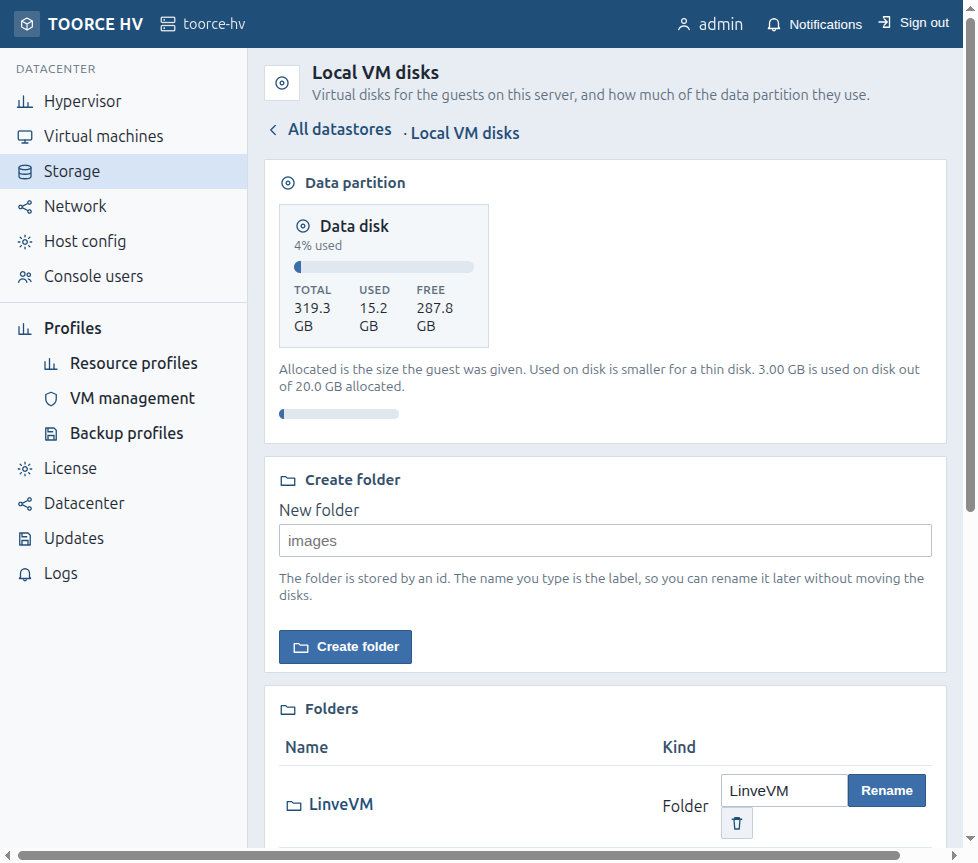
Why it matters
- Separate projects, tenants, or environments without extra LUNs.
- Keep ISO libraries tidy (for example
windows,linux,tools). - Align disk placement with backup and move targets.
7. Resource profiles
Profiles → Resource profiles define caps for accounts that create and own virtual machines: maximum memory, processors, disk, and ISO storage, plus optional scope for bridges and media from the main datastore.
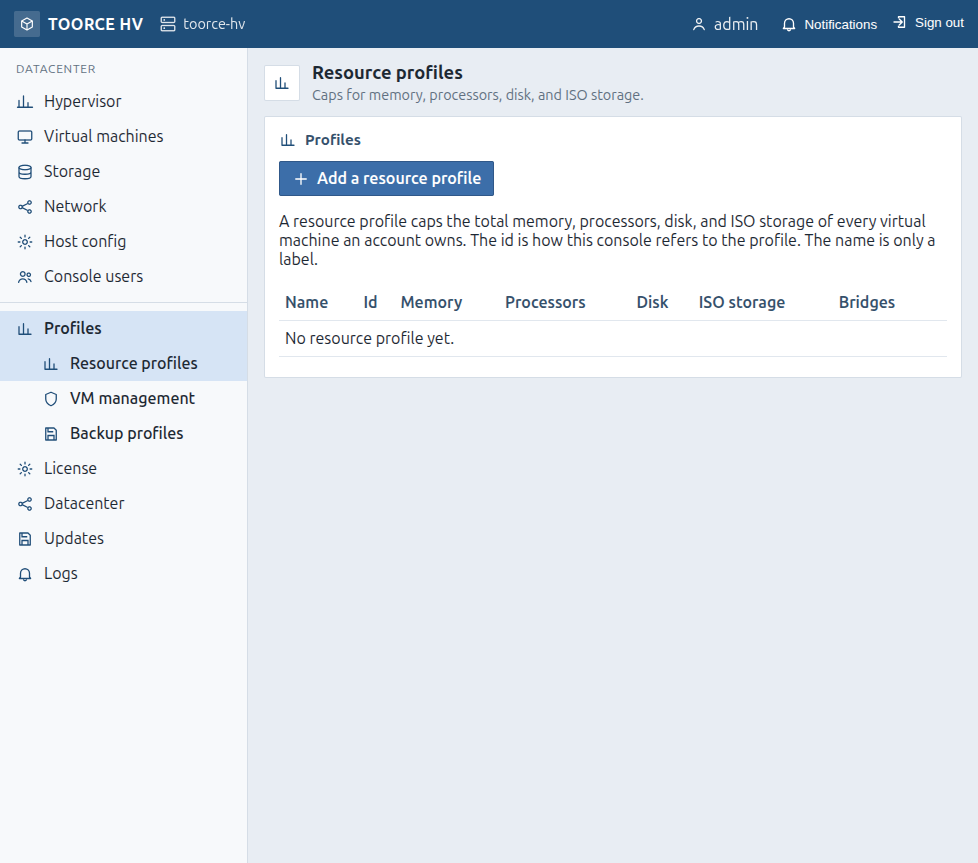
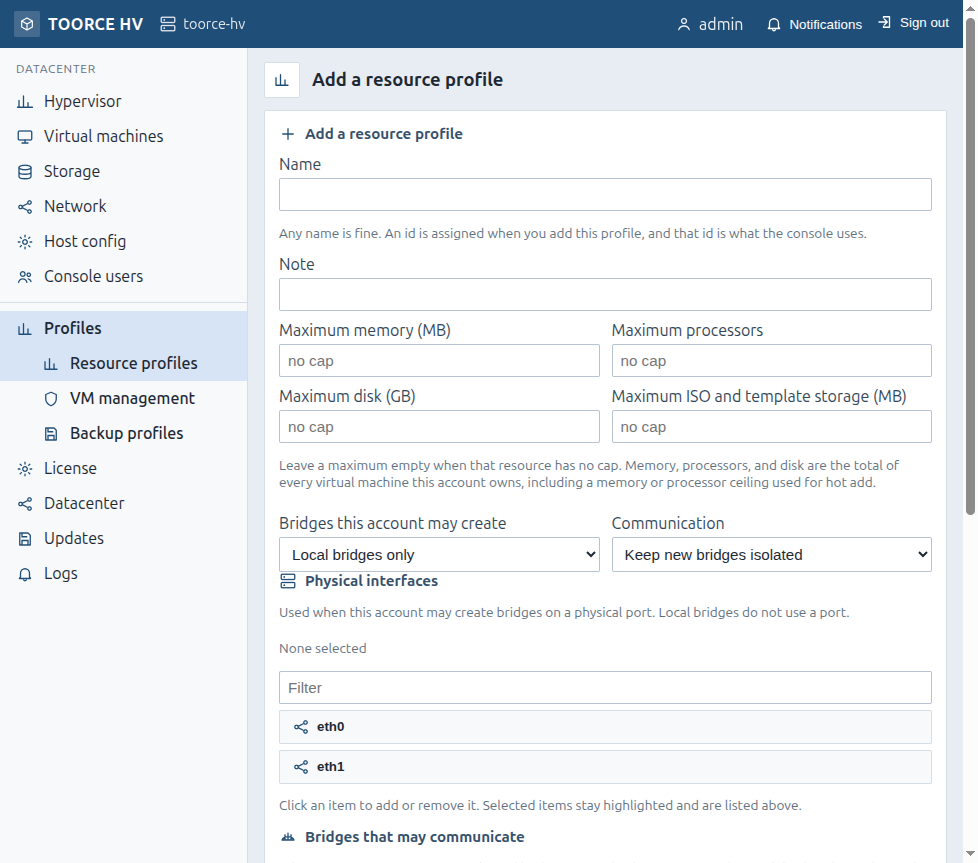
Assign a profile under Console users. An account with a resource profile can sign in and create VMs within those limits. A separate VM management profile can grant broader console pages when needed.
8. Datacenter clusters
Datacenter (footer) manages clusters: each cluster has a UUID, shared secret, selected interfaces, optional VIP, coordinator, and member hosts. A second host joins with the UUID and secret from the coordinator.
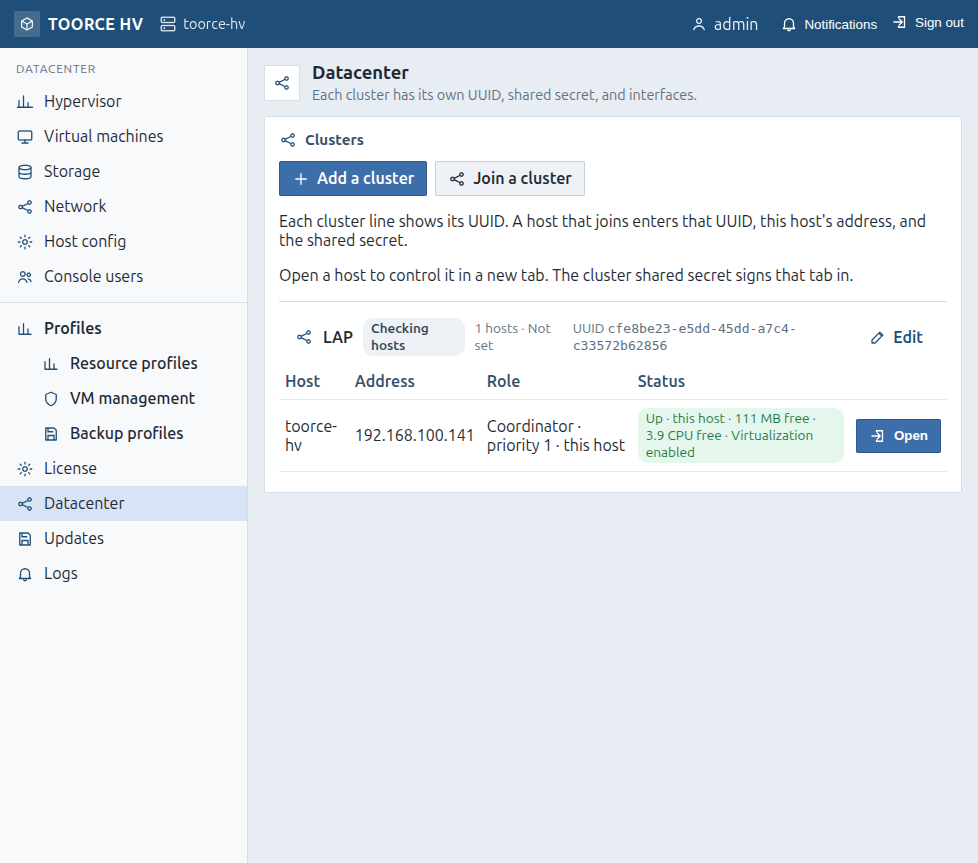
Clusters are designed to work across non-identical servers—you do not need matching SKUs or identical CPU/memory packages to form a management cluster and share storage exports. That is a deliberate product choice for mixed hardware fleets (see the technology & business document).
9. CPU core isolation (pinning)
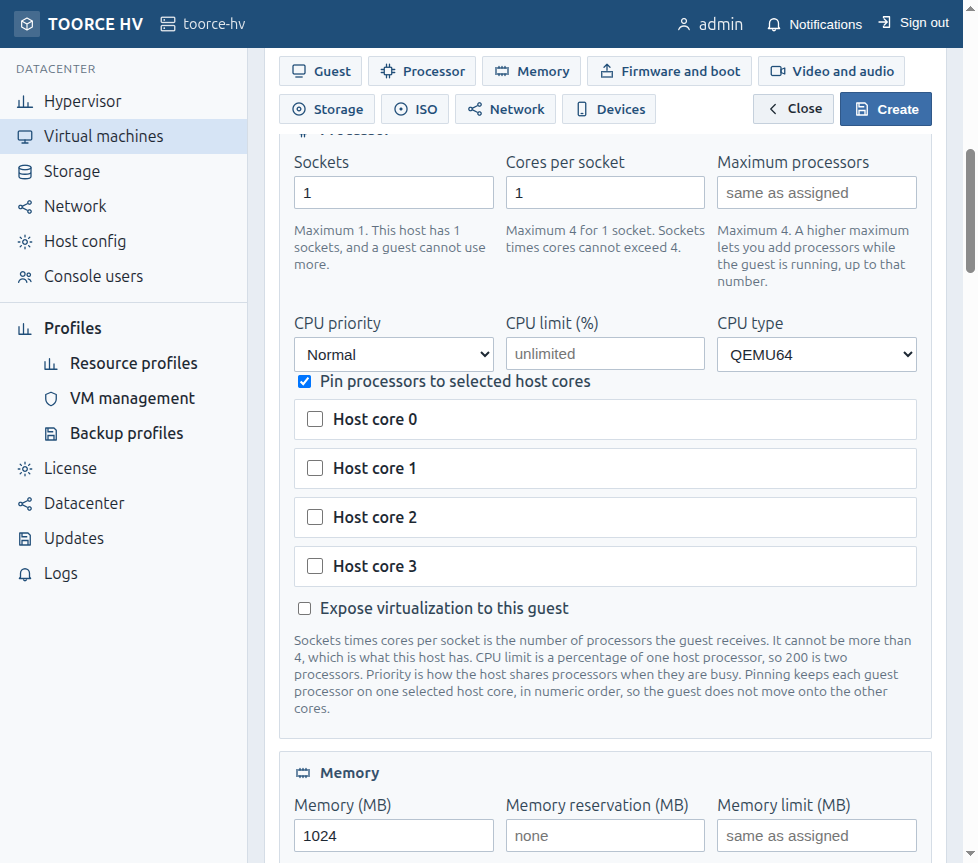
On the VM hardware form, under Processor, enable Pin processors to selected host cores and choose the host logical cores. Pinning keeps each guest vCPU on a selected host core so the guest does not migrate onto other cores.
Oracle licensing context
Many Oracle Processor license metrics care about which physical cores (or processors) are available to the software. Hard pinning to a defined set of host cores helps you document and enforce a bounded core set for that guest. Always confirm current Oracle policy with your license advisor; TOORCE HV provides the isolation control in the hypervisor.
10. Toorce Virtual Disk (TVD)
When adding a disk, choose Toorce Virtual Disk instead of a normal file disk. TVD writes one guest-visible disk across 2–8 storage paths on different physical disks and keeps them in sync (mdadm-backed):
| Paths | Layout (auto) | Resilience |
|---|---|---|
| 2 | Mirrored sync (RAID1) | Survive one storage failure |
| 3+ | Synced across storages (RAID5) | Survive one storage failure |
| 4+ (option) | Synced, survive two (RAID6) | Survive two storage failures |
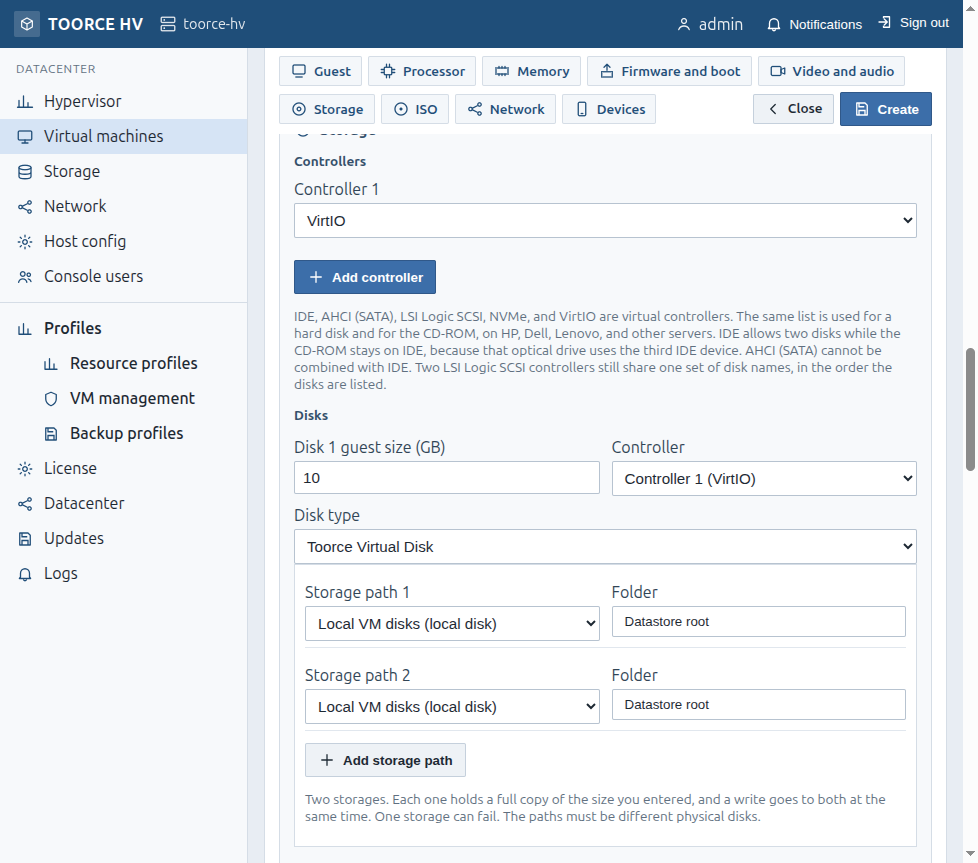
Paths can sit on different local or attached datastores/folders. Backup and snapshot flows can treat the volume as one image or copy each storage path (legs), depending on the operation.
11. Operator checklist
| Step | Where | Result |
|---|---|---|
| 1 | Sign in | Authenticated console session |
| 2 | Hypervisor | Confirm host healthy and free capacity |
| 3 | Storage | Add/mount datastores; create folders |
| 4 | Resource profiles | Cap tenant or team accounts |
| 5 | Virtual machines | Create guests; pin CPU if required |
| 6 | Disks | Use normal disks or Toorce Virtual Disk |
| 7 | Datacenter | Create/join cluster across hosts |
12. Related document
For technology positioning, competitive comparison, and business value of the key features, see: