Part A — Initial setup
A.1 Before you begin
| Check | Requirement |
|---|---|
| Hardware | 64-bit server with CPU virtualization (Intel VT-x / AMD-V) enabled in BIOS/UEFI |
| Secure Boot | Off for install and for Permital Hypervisor boot on this appliance |
| Disk | At least 27 GiB free on the install target |
| Network | Known management IPv4 address, prefix, gateway, and DNS |
| Media | TOORCE HV ISO written to USB (or mounted as virtual media) |
| Console | Keyboard and monitor, or iDRAC/iLO remote console |
Control plane (management) receives 30% of host RAM and 30% of the install disk. The rest of the disk is mounted at /var/lib/xen for local VM disks and ISO storage.
A.2 Boot the installer ISO
- Boot the server from the TOORCE HV USB/ISO.
- In the boot menu choose:
- 1 Install Toorce Type-1 Hypervisor — interactive install
- 2 Automatic install — needs kernel parameters (see A.4)
- 3 Boot installed OS from hard disk — leave the live media
The live environment starts the installer on tty1. Packages come from the ISO; the target does not need internet during install. After install, apt is pointed at repo.toorce.com.
A.3 Interactive installer (TTY)
Banner: TOORCE HV installer.
Step 1 — What should be erased?
| Choice | Meaning |
|---|---|
1 | Format only the disk you select for the OS |
2 | Erase every discovered disk, then install on the selected OS disk |
Step 2 — Disk number
Enter the number of the disk that receives the OS (≥ 27 GiB). Other disks stay unless you chose erase-all.
Step 3 — Network
| Prompt | Example | Meaning |
|---|---|---|
| Address with prefix | 192.168.100.50/24 | Management address on netbr0 |
| Gateway | 192.168.100.1 | Default gateway |
| DNS [gateway] | Enter or 8.8.8.8 | DNS (Enter = use gateway) |
Physical Ethernet ports are named eth0, eth1, … in PCI order and joined to the management bridge.
Step 4 — Web admin password
| Prompt | Rules |
|---|---|
| Web console user | Always admin at install |
| Web admin password | At least 6 characters |
| Confirm | Must match |
Step 5 — Clock
Press Enter to keep it, or type a new time as YYYY-MM-DD HH:MM
Step 6 — Confirm erase
Type exactly ERASE. Summary before erase includes erase scope, disk, firmware mode (UEFI and BIOS loaders are written), control plane size, VM storage, RAM, address, gateway, DNS, and web user.
After reboot
- Hostname:
toorce-hv - Open
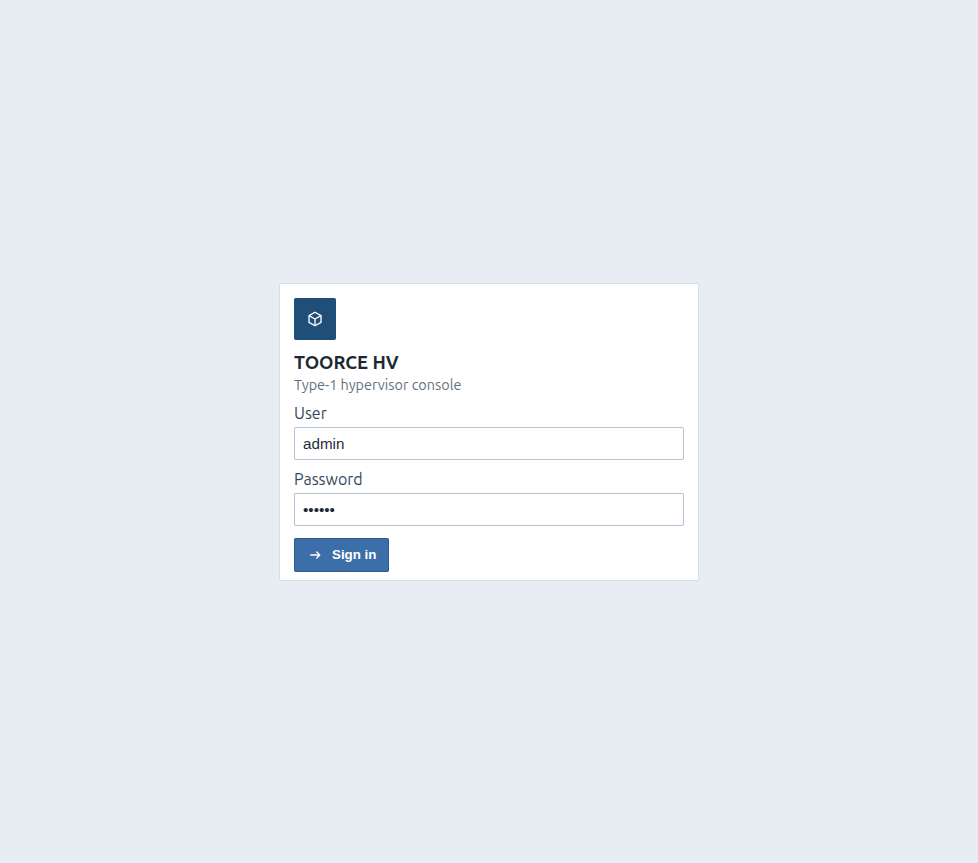
https://<management-ip>/(orhttp://if your build redirects) - Sign in as admin with the password you set
- Root password on the appliance is derived from the host serial (service use)
A.4 Automatic install (optional)
Boot menu entry 2, or append to the kernel command line:
| Parameter | Purpose |
|---|---|
hv.autoinstall=1 | Run unattended install |
hv.erase=all | Erase every disk (omit to erase only the OS disk) |
hv.address= | Management CIDR, e.g. 192.168.100.50/24 |
hv.gateway= | Gateway |
hv.dns= | DNS (optional) |
hv.admin_pass= | Web admin password |
hv.datetime= | Optional YYYY-MM-DD HH:MM |
A.5 First-login checklist
- Sign in as admin.
- Open Hypervisor — confirm state, serial, address, free memory/CPU/disk.
- Open Storage — confirm local datastore and local VM disks; mount any SAN/NAS you need.
- Open Network — confirm
netbr0and add bridges/VLANs before creating VMs. - (Optional) Create Resource profiles and Console users for self-service.
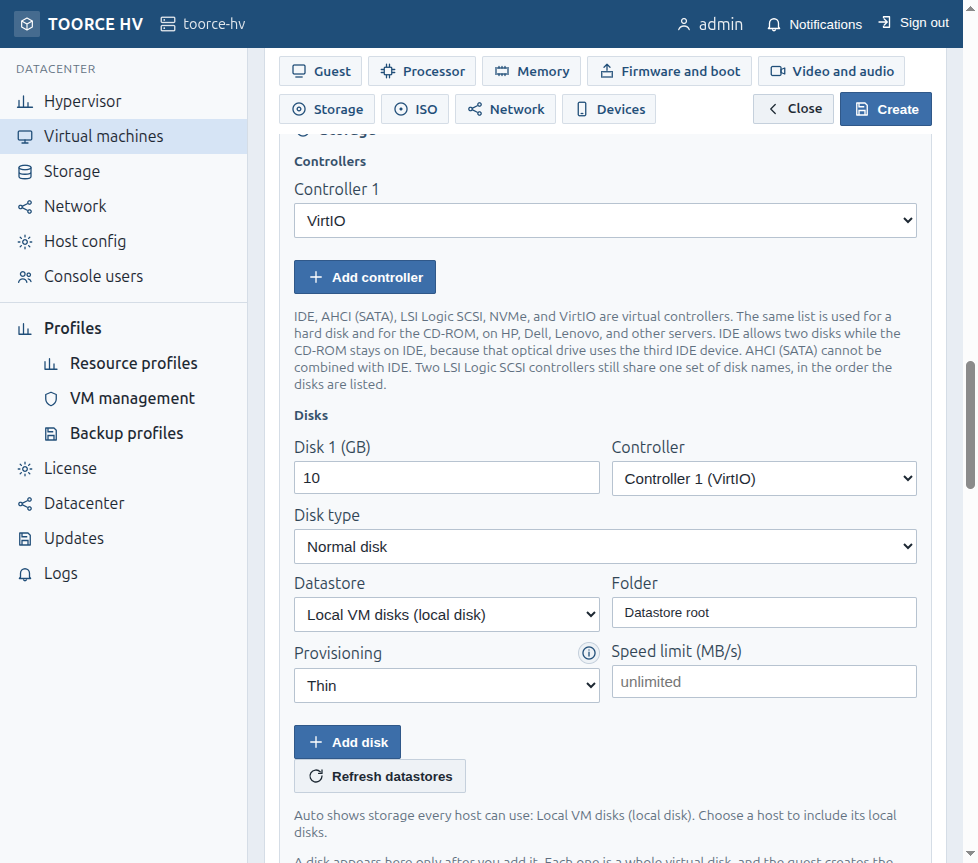
- Create the first virtual machine.